| On this page |
Overview 
The rig tree view provides a hierarchical view of character components. It can display packed character folders, KineFX rigs, and Object node rigs. To open the rig tree view, click the  New Tab icon at the top of a pane, and select New Pane Tab Type ▸ Animation ▸ Rig Tree.
Packed character folders 
The packed folder format is a type of geometry format where packed primitives are nested in a folder structure, similar to the directory structure of a file system. It is used to define, bundle, and organize data required for creating and animating characters in the viewport.
The  Pack Folder SOP assembles the input character elements into a packed character folder. It can either create a new folder structure or pack into an existing structure. To display the items in a packed character folder with the rig tree:
-
Select the SOP that contains the packed character folder.
-
In the rig tree view, set Type to Packed Folders.
To choose which input or output the rig tree view sources the packed folder structure from, change the current option in the menu found above the Type field.

output1There are situations where packed primitives are not shown in the rig tree. In this case, the parent item will indicate the number of packed primitives contained within its embedded geometry.
Items that are hidden in the scene viewer are marked with a  badge.
KineFX rigs 
KineFX rigs are represented by points and polygons. The polygon connectivity defines the hierarchy of the rig. When a KineFX rig is displayed, each item in the rig tree corresponds to a point on the geometry.
To display the points in a KineFX rig:
-
Select the SOP that contains the points and polygon primitives.
-
In the rig tree view, set Type to Joints.

Each non-leaf item provides a description indicating number_of_children/number_of_descendents relative to that item.
Object node rigs 
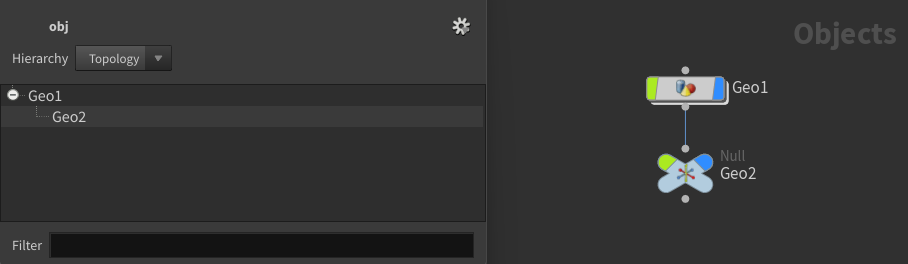
Object node rigs are composed from Object nodes. The hierarchy is constructed from the parent-child relationships between these nodes. For example, consider an Object network consisting of two nodes, Geo1 and Geo2. The output of Geo1 is the input of Geo2. The rig tree will include two items, Geo1 and Geo2, and Geo1 will be the parent of Geo2.
Hierarchy views 
The rig tree offers two views for displaying the hierarchy, Topology and Flat List.
Topology 
The topology view displays the hierarchy as a tree. This view is best for visualizing the parent-child relationships between items in the rig. To use the topology view, change the Hierarchy field to the Topology option.
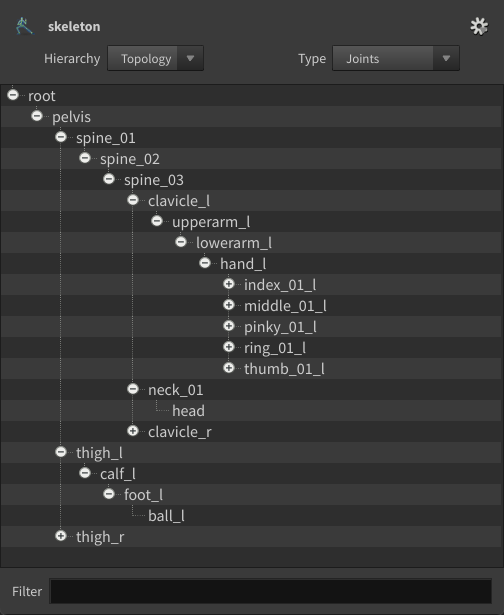
The Filter field provides a means to display only particular items in the rig tree. The syntax of the filter field is a wildcard pattern. For example, spine will display all items whose name contains the substring spine.
Multiple patterns can be specified by splitting them with a space. For example, spine ball will display all items matching either spine or ball.
In the Topology view, the parents of items matching the filter pattern will also be displayed.
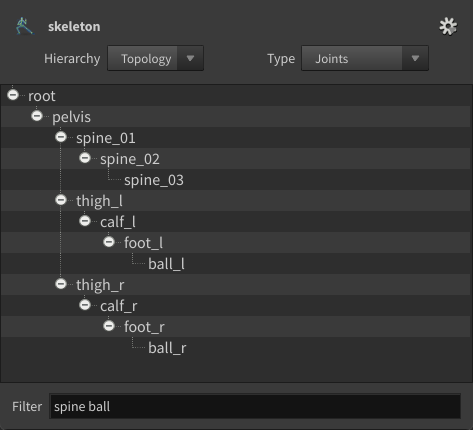
spine ballThe children of filtered items can also be displayed using the special wildcard pattern **. For example, arm**index will display all items matching arm, and all children of those items that in turn match index.

arm**indexFlat list 
The flat list view displays all rig items in a single list, ignoring parent-child relationships. To enable the flat list view, change the Hierarchy field to Flat List.
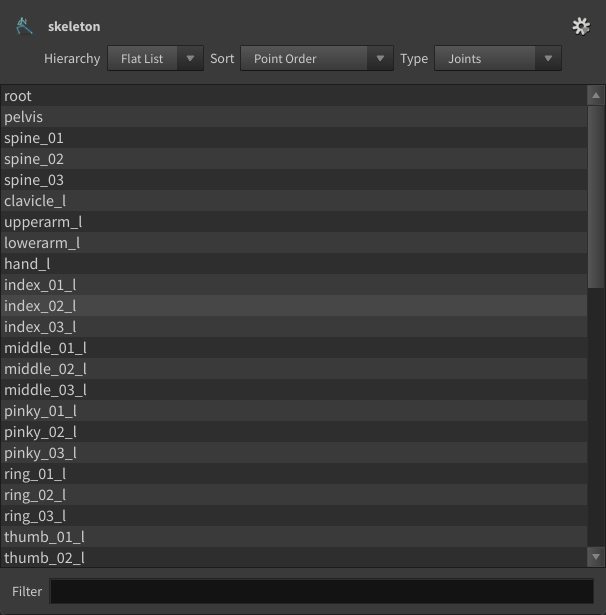
Items in the list view can be sorted. To do so, change the option in the Sort field:
-
Point Order: Items are sorted by their point numbers in increasing order.
-
Reverse Point Order: Items are sorted by their point numbers in decreasing order.
-
Name: Items are sorted alphabetically by their names.
-
Point Order: Items are sorted reverse-alphabetically by their names.
Manipulating items 
Selecting items 
Items can be selected in the rig tree with  . ⌃ Ctrl + will select an additional item or deselect a selected item. ⇧ Shift + will select all items between the first selected item and the current selected item.
-
With KineFX rigs, selecting an item automatically enters the SOP’s viewer state and selects that point.
-
With Object node rigs, selecting an item selects that Object node in the network view.
Drag and drop 
Items can be dragged by holding and moving the item. Releasing will drop the item.
-
For KineFX rigs, drag and drop performs a parenting operation if supported by the node state. See the
 Parent Joints SOP or
  Skeleton SOP for examples.
 -
For Object node rigs, drag and drop rearranges the connections between the Object nodes.
Renaming items 
An item can be renamed by double-clicking with on an item. A text input field will be opened. After inputting a new name, it can be accepted with Enter or cancelled with Escape.
-
For KineFX rigs, renaming an item changes the name of the selected joint if supported by the node state. See the
Skeleton SOP for an example. -
For Object rigs, renaming an item changes the name of the associated Object node.
Deleting items 
An item can be deleted with Delete.
-
For KineFX rigs, the delete operation deletes the selected joints from the skeleton if supported by the node state. See the
 Delete Joints SOP or Skeleton SOP for examples.
 -
For Object rigs, you cannot delete items from the rig tree.
Context menu 
The rig tree context menu provides several actions for accessing the viewing the values of items. To open the context menu,  in the rig tree view.
Expand Subtree
Expands the subtree under the current item. This option is disabled if this is a leaf item.
Collapse Subtree
Collapses the subtree under the current item. This option is disabled if this is a leaf item.
Select Subtree
Selects the current item and all items in its subtree.
Deselect Subtree
Deselects the current item and all items in its subtree.
Inspect…
Opens a spreadsheet dialog with the current item.
Reapply Selection
Re-sends the current selection to the rig tree handler. If there is no handler, this option has no effect.
Clear Selection
Deselects all currently selected items.
Copy as Text
Copies the name of the current item. Hotkey: ⌃ Ctrl + C
Copy as VEXpression
Copies the name of the current item as a VEX expression. That is, it will prefix the name with @name=. Hotkey: ⌃ Ctrl + ⇧ Shift + C
Copy as Full Path
Copies the full path of the current item. The full path is created by joining the names of the current item’s ancestors with the current item’s name.
Unpack Path
Creates a new  Unpack Folder SOP loaded with the current item as its root. This option is only enabled in Packed Folder mode.
Viewer states can also define custom actions in for the context menu.
Settings 
The following settings are available in the  menu in the top right corner of the rig tree view:
Reset
Retraverses items in the rig tree.
Geometry Selection
Open Dialog on Start
Automatically opens a rig tree dialog when interacting with a parameter selector in the parameter editor.
Close Dialog on Finish
Closes the rig tree dialog after performing the parameter selection.
Node States
Open Dialog on Enter
If a rig tree dialog is not already open, this automatically opens a rig tree dialog when entering a node’s viewer state.
Close Dialog on Exit
Closes the rig tree dialog when exiting the node’s viewer state.