| On this page |
The Houdini Engine for Unity content examples contains showrooms that demonstrate features within the plugin. Each showroom has small examples to help you quickly understand a topic either through educational information or a simple action walkthrough.

Each level contains a specific topic such as:
-
Curves
-
Geometry
-
Instancers
-
Landscapes
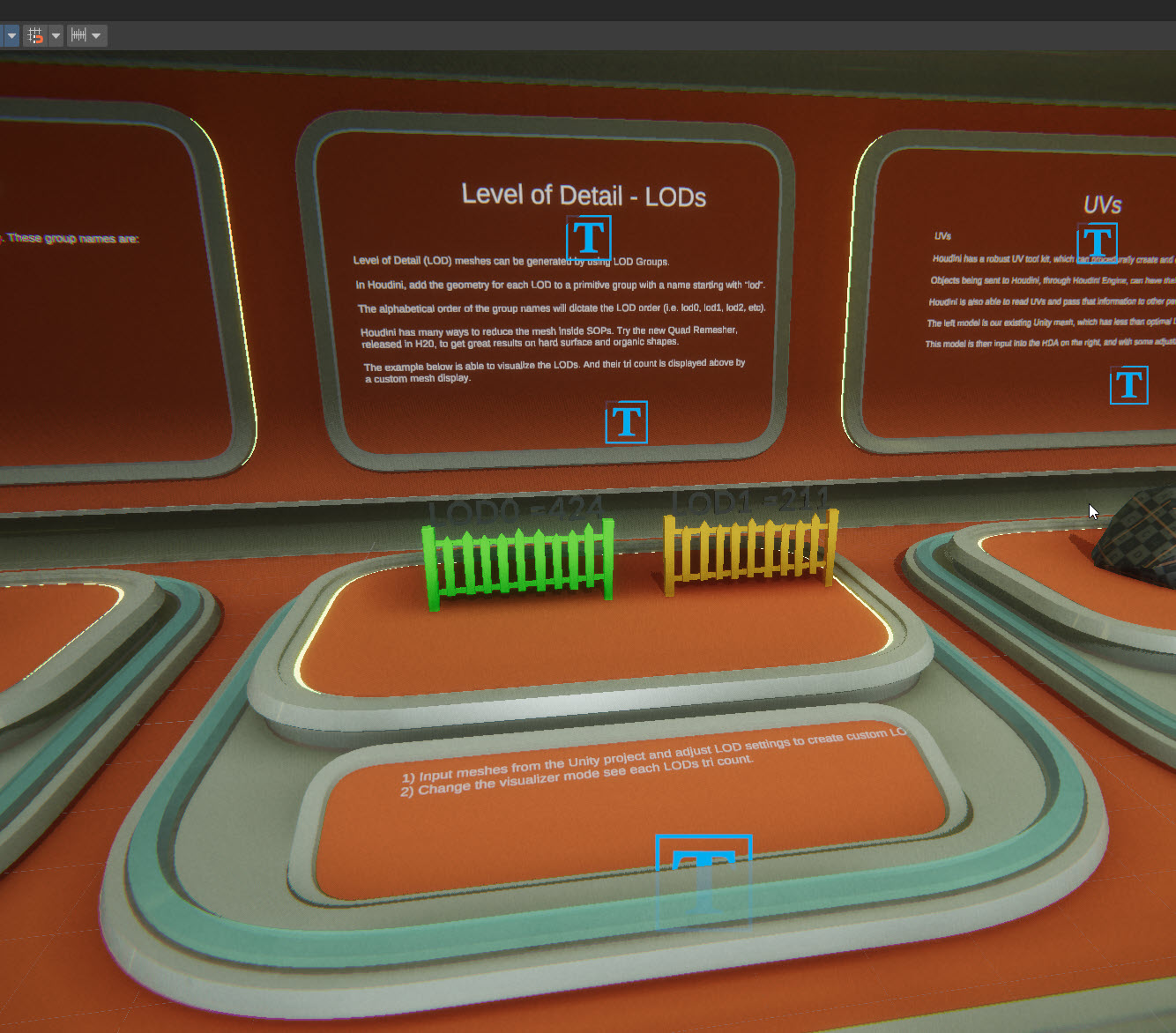
Here’s an example of a geometry showroom on the subtopic Level of Detail.
Installing content examples 
-
Download the latest Houdini Engine for Unity content examples in the Content library.
-
In the Unity Hub, download the High Definition 3D template. Then, create a new project using High Definition 3D.
Note
In the Editor Version selection window, make sure you select Unity version 6 and above.
-
Copy the Houdini Engine plugin to the Plugins folder.
-
Launch your Unity project. Make sure your Houdini session is connected.
-
In the Assets menu, select Import Package and then Custom Package.
-
Select the
HoudiniEngine_ContentExamplesUnity package. A new pop-up window should appear. Click Import to import everything. -
In the Project window, navigate to _HE_ContentExamples\Maps_. Select one of the content maps.
-
On your first open, you might see a pop-up window for TMP Importer. This is a Unity plugin that is needed to work with the content examples. Click Import TMP Essentials.
-
If your materials and shaders appear to be not loading properly, you may need to recompile your shaders. See Render Pipeline Converter documentation.
Getting started 
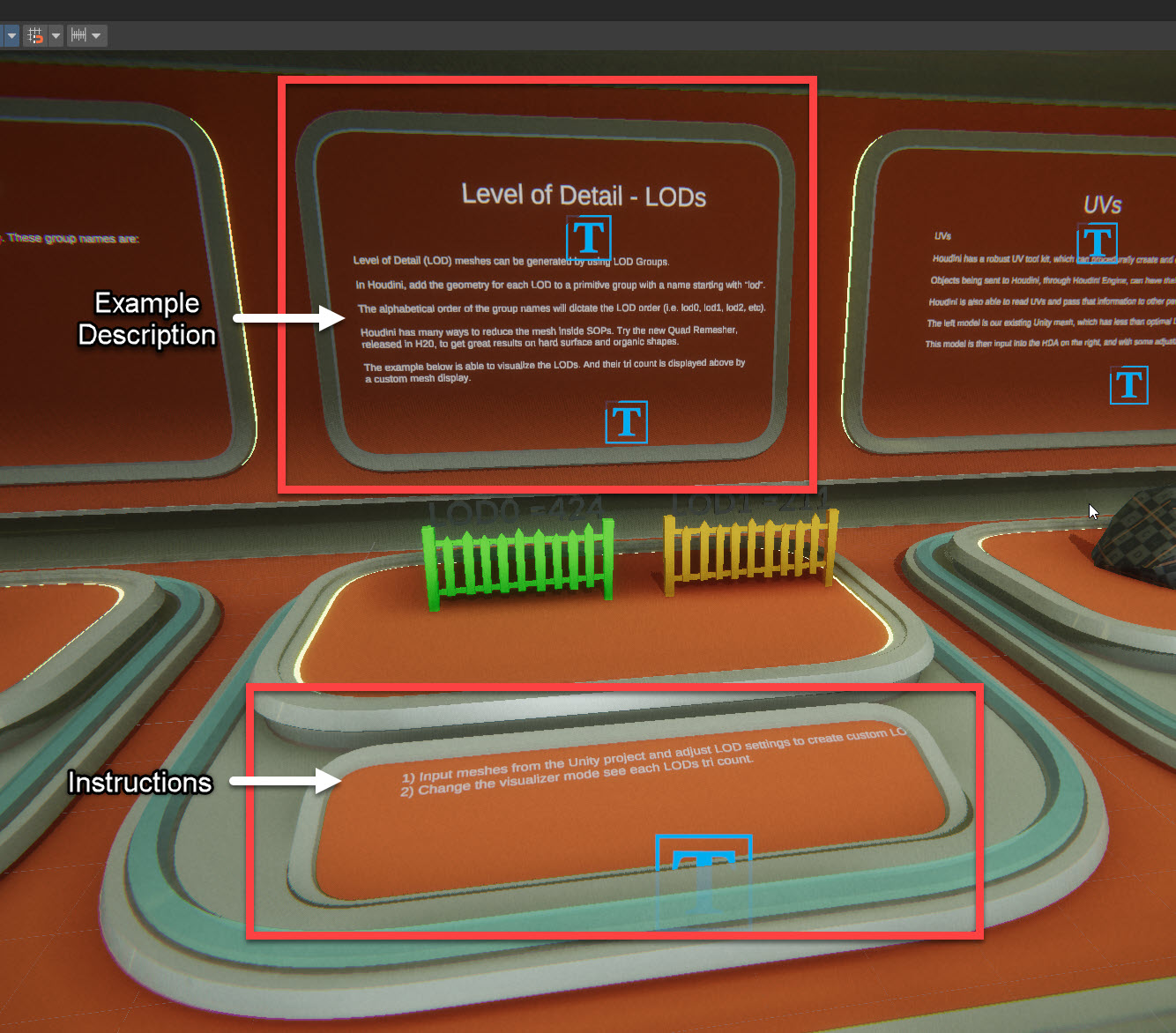
When you open these maps, you may need to cook the HDAs to see the geometry and assets. Once open, you will notice a level with different showrooms and a set of examples within it.
Each example showcases a different use case you can interactive with.
On the wall is the description for the content example. The bottom section provides instructions for you to play with the example.
Using HDAs in Houdini 
In the _HE_ContentExamples\HDA_Examples_ folder, you can see topic folders such as Curves, Geometry, and Instancers. Within these folders, you can open the HDAs in Houdini to further dissect the node networks, attributes, and parameters.
At the object level, you can see the node network with notes explaining the workflow, attributes, and parameters used for the HDA.
