| On this page |
This covers common PCG workflows used throughout the PCG HDA node and in the PCG graph.
Create PCG HDA node 
The first step is to create a PCG HDA node in the PCG graph:
-
Import your HDA into Unreal. See the HDA import and export workflow for more information.
-
In your PCG graph, click TAB and enter
Houdini. This pops up Houdini Digital Asset as a node option. Set this node into the PCG Graph. -
In the Houdini PCG details panel, locate the Houdini Asset parameter.
-
In the dropdown menu, select your desired HDA.
-
A Houdini Session will now be created. The HDA is parsed for inputs, outputs, and parameters.
-
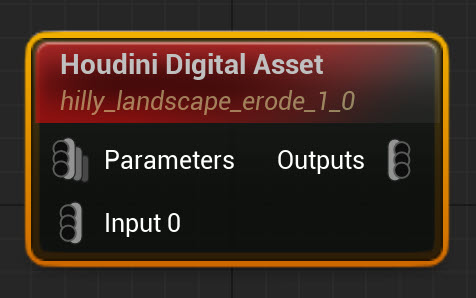
You can use any supported HDA type inside PCG. See Assets for more information
Geometry and World input setup 

This workflow shows how to connect a PCG node to the inputs of a PCG HDA node for geometry and world inputs.
-
Follow the Create PCG HDA node steps.
-
In the Houdini Inputs tab, change the first dropdown to Geometry Input or World Input depending on your use case.
-
In the Graphs Parameters tab, click the + in the Parameters option to create a
NewProperty. -
Click on the color next to the
NewPropertyto pop-up a search box. EnterActor. -
In the new pop-up dialog, select Actor then Soft Object Reference.
-
Drag out the
NewPropertyparameter to your PCG Graph. Then, connect it to one of the input’s of your PCG HDA node. -
Select your PCG HDA node, locate the PCG Attribute settings. The default name is
objectbut you can rename it to your desired attribute name. -
Select your New Property node and rename it to
object. This now links the PCG node to the PCG HDA node’s input properly. -
In the outliner, select your PCG Graph.
-
In Unreal’s Details panel, select the PCG tab, then Parameter Overrides. You should see the
objectattribute.Tip
Unreal’s detail panel can change as you work on your PCG graph. It’s recommended to click the Lock icon at the top right to avoid the details panel from changing.
-
Check the checkbox for
object, then select your asset or actor from the dropdown menu.
PCG data setup 
HDA setup 
This workflow covers how to pass only PCG data from your HDA into Unreal’s PCG HDA node.
Before your Unreal setup, make sure your HDA has the unreal_pcg_params attribute. This allows your HDA to pass as PCG data instead of Unreal objects.
-
In your HDA, create an Attribute Create SOP.
-
In the Name parameter, enter
unreal_pcgparams. -
Follow the remaining steps in Create a Houdini digital asset to export the HDA.
Unreal setup 
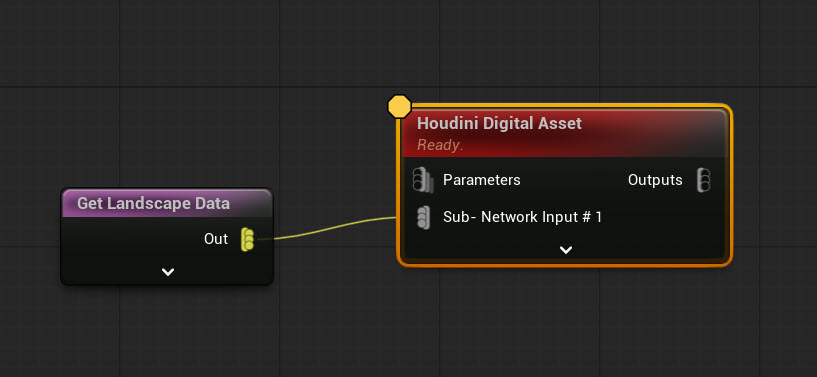
The workflow covers how to get PCG data from your level or assets and pass it to your PCG HDA node. This example follows a simple cliff landscape HDA to get Landscape point data from an existing landscape in the Unreal level which then passes to the PCG HDA node.
-
Create a new Unreal level and use the Open World template.
-
In the outliner, select the Landscape and expand to view it’s child actors. Select all the
LandscapeStreamingProxyactors. -
In the Details panel, locate the Tags Option. Click the + button to add a new tag. Name the new tag
Terrain. -
Follow the Create PCG HDA node steps.
-
Select your PCG HDA node. In the Houdini Inputs tab, change the first dropdown to PCG Input.
-
In the Houdini PCG tabs, check the checkbox for Force PCG Outputs.
-
This forces the HDA to output PCG attributes automatically as if
unreal_pcg_paramswere specified on the outputs. Any incoming PCG nodes connected to the PCG HDA node’s input will now pass as PCG data instead of actors or assets.
-
-
In your PCG graph, click TAB and enter
Get Data. Select Get Landsdcape Data. -
Connect the Get Landscpe Data’s out pin to the input pin of your PCG HDA node.
-
Select the Get Landscape Data node, and go to the Details panel.
-
In the Component Selection option, select By Tag in the drop down.
-
In the Component Selection Tag option, enter
Terrain.-
This allows you to grab the Landscape actor in your level using the
Terraintag.
-
-
Select your PCG HDA node and click A to get into inspection mode.
-
In the Attributes panel, select the first dropdown and change it to Input.
-
You will notice the landscape’s point data has been passed along such as its X,Y,Z position as vector points.

-
General how-to’s 
| To... | Do this |
|---|---|
|
Pass or override a parameter with a PCG parameter node |

|
|
Disconnect a cooked PCG actor from the PCG graph |
|
|
HDA not re-cooking when changes have been made |
|