| On this page |
Introduction 
In Unreal, the Procedural Content Generation Framework (PCG) allows you to create procedural content within the engine. See Unreal’s PCG documentation for more information.
The PCG plug-in integrates Houdini Digital Assets (HDAs) and its functionalities into Unreal’s PCG graph. Using Houdini’s node networks and HDAs allows you to create tools, assets, landscapes, geometry, curves, and skeletal meshes with the combined power of PCG nodes to enhance your assets within Unreal.
Houdini Digital Asset node 
The Houdini Digital Asset (HDA) node is the framework for connecting PCG’s network to Houdini Engine for Unreal plugin capabilities. This node allows you to use all the functionalities of an HDA in Unreal combined with PCG nodes to output an asset or pass through data.
The HDA node is set to send and receive Parameters, Inputs, and Outputs.
You can set parameters and HDA inputs on the HDA PCG node similar to Houdini Asset Components.
A single output pin contains information about all HDA outputs. All outputs, including Unreal objects and PCG data are merged into a single PCG data stream. If an HDA has multiple outputs, they are not automatically separated in the PCG graph. Instead, downstream PCG nodes must be used to filter and isolate specific outputs. For example, you can filter output tags using the Filter Data By Tag option such as output_0 and output_1.
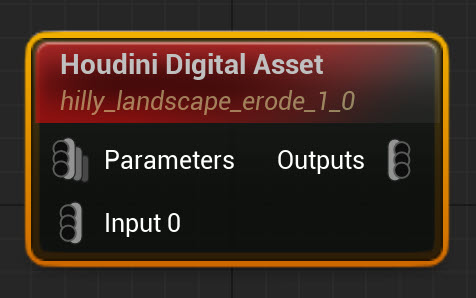
Parameters 
HDA parameters can be overridden by assigning attribute sets to the parameter pins of the HDA PCG node. You can create attribute sets from any built-in PCG node such as properties or data tables. A few examples of overrides are graph parameters, constant nodes, and attribute sets generated by other PCG nodes.
See Parameters for more information.
In the case of PCG, parameters refer to the parameters exposed on the HDA. These are different from the PCG Graph parameters. Although you can use PCG graph parameters to drive HDA parameters.
Your PCG node parameter name must match the internal parameter name on the HDA (not the displayed label name) for the override to work.
See PCG workflows for more information.
Inputs 
The HDA PCG node supports three different input types:
-
PCG data
See Inputs to learn more about each input type.
For PCG, geometry input and world input are referred to as Unreal Objects.
Unreal objects 
Unreal objects are Geometry input or World input such as meshes, splines, and landscapes that can be sent to HDA inputs using attribute sets. In the PCG Attribute property inside the input, you can set the name of the PCG Attribute for the path of the input object. See PCG workflows for more information.
The default is set to object. This attribute name must match the input name defined on the HDA. You can set additional input settings on the HDA PCG node’s details panel.
PCG data 
PCG data consists of attribute sets that can be sent downstream to PCG nodes or Houdini. It does not contain any mesh, actors, or assets from the level. To view these attributes, see the Attributes tab in Unreal. A few examples of attributes sets that can be passed through include sampled points, spline data, and strings. Learn more about PCG data in the Unreal documentation.
See Attributes and Groups for more information.
If an attribute or point data is assigned to the HDAs input node which does not contain an object attribute, the plugin uploads the raw data to Houdini. This is useful for sampling points on a landscape and sending it to Houdini rather than the whole landscape.
Within the PCG Graph, data streams are identified by type. For example, spline data are labeled as PCG spline data and point streams as point array data.
Note
Point data transforms its coordinates between Unreal and Houdini. Generic Vector attributes don’t convert because vectors can’t be distinguished from points, vectors, or arbitrary data.
Outputs 
All outputs generated by an HDA inside a PCG Graph are merged into a single output stream. This applies to both Unreal object outputs and PCG data outputs.
When an HDA has multiple outputs, each output is internally tagged such as output_0 and output_1. To isolate specific outputs in the PCG Graph, you can use filtering nodes such as Filter Data by Tag.
Unreal objects 
Unreal objects refers to assets and actors that are in your content browser or level. You can create Unreal objects directly from Houdini similar to Houdini asset components. These objects create in the content browser or the level hosting in the PCG graph actor since PCG doesn’t pass Unreal objects between nodes.
The HDA PCG node can pass information about the objects between PCG nodes.
PCG data 
The HDA PCG node can create raw PCG data instead of Unreal objects. For example, an HDA may sample a Houdini heightfield and return a list of points rather than a whole landscape. This export also includes parameters and attribute sets.
Note
When PCG data is transferred between Unreal and Houdini, the data may change and not be a one to one transfer.
By default, the output is an Unreal object unless you set it to be PCG data. To export the PCG raw data, the asset must contain the unreal_pcg_params attribute.
The unreal_pcg_params can be sent to and from Houdini. For Houdini, place the attribute in your HDA similar to any attributes and groups. You can also turn on Force PCG Outputs which forces the HDA to output PCG attributes automatically as if unreal_pcg_params were specified on the outputs.
See PCG workflows for more information.
Note
The unreal_pcg_params attribute will be pass through the PCG HDA node’s output which may cause downstream HDA’s to also trigger the same attribute. You may want to delete it in your HDA or PCG graph to avoid it.
Houdini PCG 
When you are in the PCG graph and have created a Houdini Digital Asset (HDA) PCG node, an additional Houdini PCG tab appears. See Details Panel for the full list of HDA settings.
Setting |
Description |
|---|---|
Houdini Asset |
Set the Houdini Asset from the dropdown for the HDA PCG node in the PCG Graph. Geometry Input - Marshalls data from Unreal assets in the content browser to Houdini. __World Input___ - Connect any actor in the world/level to your Asset’s input. PCG Data - The raw data or attributes to send to Houdini. |
Output Type |
Dropdown menu to select the output. Cook - When you cook an asset, it follows these steps
After cooking scene components such as meshes, they're attached to the HoudiniPCGActor. Actors are placed in the current level. Assets are created in the temperary Houdini directory located in Game/HoudiniEngine/Temp. Cook and Bake - First, cooks the PCG Node following the Cook description process. Then, bakes the cooked data which typically means copying the data from the Cook stage to its final output location. Scene components are replaced with actors in the level. Actors are placed using the final baked actor naming convention. Assets moved to the Baked folder. Note Baked actors and assets are deleted when regenerating the PCG graph or selecting Cleanup in the PCGComponent settings. To prevent this, select Clear PCG Link on the PCGComponent. |
Create Scene Component |
When on, scene components and actors will be created for HDA outputs in the current level. When off, only assets are created in the content folder. This is useful for creating assets which are then used to spawn other actors in the PCG Graph such as the Static Mesh Spawner node. |
Automatically Delete Temp Assets |
When on, automatically deletes assets stored in the Houdini Engine temporary folder in the Content folders. This folder can become full when using PCG, so turn it on to reduce disk space. |
Use PCG Cache |
To optimize PCG performance, Unreal uses an internal cache to store outputs generated by PCG nodes. If the inputs do not change, the cache assumes the outputs can be reused and speeds up the PCG graph generation. However, using the PCG cache is not desirable if the HDA PCG node depends on assets outside of Unreal. For example, if an HDA loads a Note This setting only affects the node applied, the rest of the graph’s nodes still uses the PCG cache. Tip When this setting is on and a node does not generate correctly. Use Force Generate to clear the cache. You can also use CTRL + |
Force PCG Outputs |
When on, forces the HDA to output PCG attributes automatically as if |
Apply PCG Transform |
Applies the PCG Volume transform to any PCG point or spline outputs. |

Houdini PCG Actor 
When a PCG Graph containing a Houdini Digital Asset node bakes in a level, a Houdini PCG Actor named HoudiniPCGActor is created that contains all the generated content. This Houdini PCG Actor acts as a container for the PCG graph’s results and contains the generated components such as meshes, splines, and landscapes.
The HDA node supports both cooking and baking behavior similar to the Houdini Asset Component. Cooking generates temporary assets while baking creates permanent assets in the level. If you delete the HoudiniPCGActor, the previously connected actor is no longer linked to that PCG Graph. When you re-cook or re-bake, a new HoudiniPCGActor will be generated along with a new actor.
Supported features 
In general, features available on the Houdini asset component are compatible with the HDA PCG node with a few limitations listed.
Landscapes 
Landscape creation is fully supported by Houdini in PCG. Landscape modification is supported with some caveats.
If an HDA modifies an existing Unreal landscape, enable “Ignore Landscape Tracking” on the PCG Component in the level. This prevents Unreal from creating a dependency loop when landscapes are modified.
The Houdini Engine plugin for Unreal currently does not fully support the modification of existing landscape layers. Although modifications to existing layers will be applied, they will not be undone when a PCG graph is regenerated. The recommended workflow for PCG is to create landscape edit layers inside the HDA, as created layers will be deleted when the HDA is cleaned or regenerated.
Session Sync 
Session Sync can be used to edit and inspect HDAs when using PCG Graphs.
Note
Node Sync is not compatible with the PCG HDA node. Only Session Sync.
When an HDA is assigned in a PCGGraph node the plugin will instantiate an HDA in Houdini. This has the name <PCG Graph Name>_<PCG Node Name>_<HDA Name> which can then be edited inside Houdini.
To view an existing PCG node inside Session Sync:
-
In the Houdini PCG details panel, click the Rebuild From HDA button.
-
This loads the HDA in Houdini and updates the PCG Node’s parameters and inputs to the latest definitions.
-
-
Once edited in Session Sync, the HDA must be saved inside Houdini, and the definition updated using Rebuild From HDA.
-
If not, then PCG Volumes which use the PCG Graph may continue to use the previous HDA definition.
-
When PCG Graphs are used in a level, an additional HDA will be uploaded in Session Sync with the name PCG_Instance_<HDA Name>. Do not edit this node as it is transient. Note that multiple instances are created for loops.
PCG Editor Mode 
The plugin is compatible with PCG Editor Mode which is a simpler method to leverage the PCG framework in the PCG graph. See Unreal’s PCG Editor Mode documentation.
PCG Loops 
One HDA is instantiated per loop iteration. There are no limits to how many HDAs you can load but be cautious of complex HDAs that may iterate many times over.