
| On this page |
Note
To be removed in Houdini 24.0.
Instructions: 
Loading a Substance File 
Loading a Substance File is as easy as entering the path to your SBAR file into the File Path Parameter.
Note
This plugin works with Substance Archive Files, not Substance Files. Archive files can be generated from Substance Designer as Publishing the Substance
Once a Substance has been loaded, parameters will be populated dynamically based on the graph.
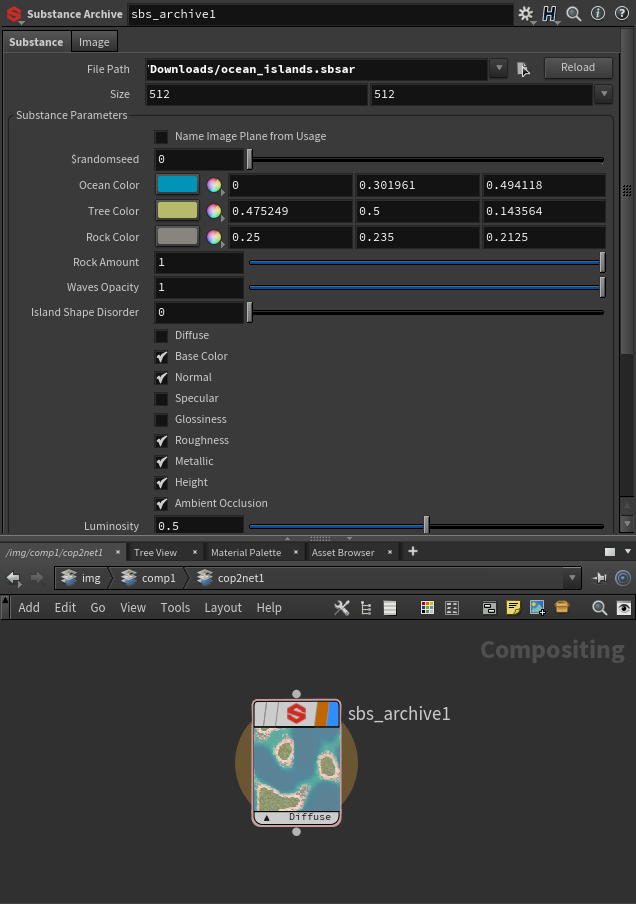
Viewing the Outputs 
The Substance Archive node will generate a new image plane per Output in Substance.
The easiest way to visualize this is by clicking the image plane dropdown in the Composite View Tab.

Loading Inputs into the Substance File 
Despite the COP node only having one input, we do support multiple substance inputs. Those come in as different image planes in the input node.
By Default they are name matched, so an input looking for roughness will look for an image plane of the same name in the input node.
Parameters for inputs are exposed and you can override which image plane you want to go into what input.
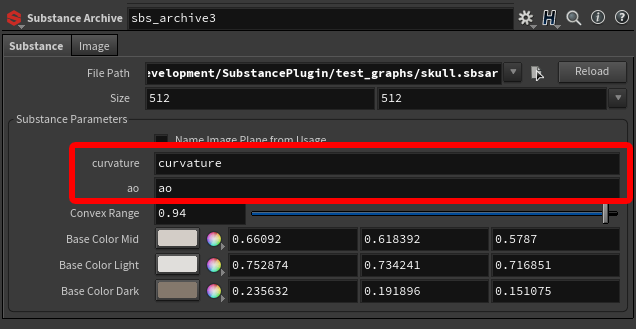
To have 2 File nodes come in properly into a Substance, you will need to use the Rename COP
Note
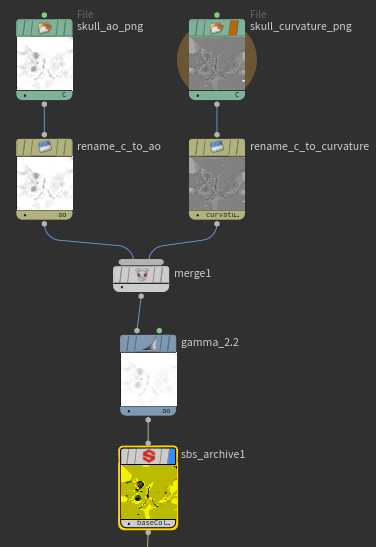
You might also need to gamma correct your inputs with the gamma node.
Below is the image of a sample network where 2 files are being read from disk, renamed, gamma'd and sent to the Substance Node.
Working with Substance Files with Multiple Graphs 
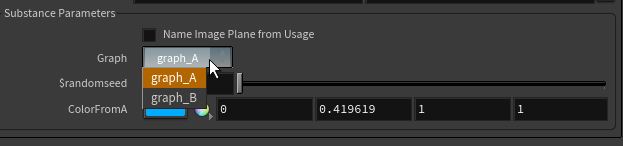
In the case of multiple graphs inside of a single SBAR file, a new graph parameter will show up. Allowing you to choose which graph you'd like to work with.
Hooking Substances into other parts of Houdini 
To use the contents of a Substance Node in other parts of Houdini, you can make use of the Op Syntax
Note
The {channel_name} syntax does not work with Mantra. To use channels with Mantra you will need to use the Rename COP and rename your target channel to C and do the Op Syntax to the rename node.
Known Issues 
-
Animated Inputs Images are not supported
-
Visible If Parameter Expressions for Outputs are not supported
Parameters 
File Path
The path for your SBSAR file
Reload
Reloads the current SBSAR File
Size: Override the output size of the SBSAR
Substance Parameters
This area will populate dynamically based on the parameters in your Substance Graph.
Name Image Plane from Usage
Uses the Usage type as the name of the Image planes, instead of using the Labels. This is useful if you are hooking your substances into a material, and don’t care about what the graph output was named, just what channel it should link to.