| On this page |
Overview 
The  MPM Solver supports direct input of HeightField geometry through the
  MPM Collider, allowing you to use Houdini HeightFields directly as collision geometry in an MPM simulation. This allows terrain-driven simulations, such as snow accumulating on mountains, using standard HeightField tools. No polygon conversion is required. HeightFields are internally converted to collision volumes (SDFs) and evaluated at the resolution defined by the connected
  MPM Container.
For more information, see the HeightField chapter.
Workflow 
-
Create an MPM setup. You can easily do this using the tab menu and selecting MPM Configure.
-
Create a HeightField using standard
 HeightField SOPs.
 -
Optionally, modify the terrain by adding
 HeightField Noise.
 -
Connect the HeightField to the
MPM Collider, instead of the box1collision geometry. -
Turn off the solver’s ground plane.
-
Play the simulation. The MPM particles will interact directly with the terrain.
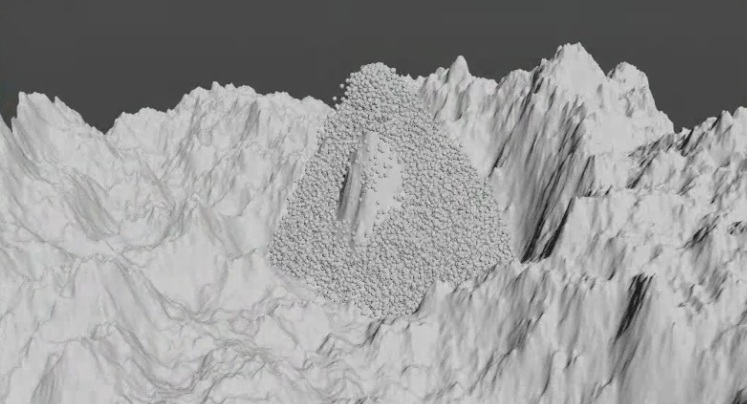
Collider types for animation 
You need to choose the correct Collider Type on the MPM Collider to match how the terrain is animated.
Static
Use for non-animated HeightFields. This is the fastest option.
Animated (Rigid)
Use when applying transforms, such as translate, rotate, or scale. For example, a rotating or moving terrain.
Animated (Deforming)
Use when the height values themselves change over time. For example, animating noise, offsets, or erosion. If deforming animation is used without switching to Animated Deforming, particles may incorrectly penetrate the terrain.
In terms of performance, Static and Animated (Rigid) are faster; however Animated (Deforming) is required for accuracy when you have changing height values. Choose the simplest mode that correctly represents your simulation.
Varying Friction and Stickiness 
The MPM collider supports spatially varying material properties, allowing different parts of a HeightField to influence particle behavior in different ways. This is particularly useful for creating effects like snow that sticks to some areas of terrain while sliding off others. This is achieved by providing additional volumes on the HeightField that the solver interprets as physical properties.
A typical HeightField contains:
-
height- defines the terrain elevation -
mask- a generic control layer used for painting or procedural effects
The MPM solver can use additional volumes, specifically named, to control collision behavior. You can repurpose the existing mask (or create new layers) to drive these properties.
Friction 
Friction controls how easily particles slide along the surface.
-
Insert a
 Name SOP between the HeightField and MPM Collider nodes.
 -
Select
maskas the Group andfrictionas the Name. This renames themaskvolume tofriction. -
Insert a
 Volume Wrangle node between the Name and MPM Collider nodes.
 -
Use this VEXpression to define the friction values across the terrain.
if (@P.x > 0)
    @friction = 1;
else
    @friction = 0;
This results in
0being no friction (particles slide freely), and1being high friction (particles resist motion and settle).
Areas with higher friction will cause particles to slow down and accumulate. Areas with lower friction will allow particles to slide or flow downhill. This is useful when simulating snow sticking to the side of a mountain or snow sliding off of steep regions.
Stickiness 
Stickiness controls how strongly particles adhere to the surface, rather than how they slide along it.
-
Insert a
Name SOP between the HeightField and MPM Collider nodes. -
Select
maskas the Group andstickyas the Name. This renames themaskvolume tosticky. -
Use this VEXpression to define the stickiness values across the terrain.
if (@P.x > 0)
    @sticky = 1;
else
    @sticky = 0;
This results in
0being no stickiness (weak adhesion), and1being high stickiness (strong adhesion).
Areas with high stickiness will cause particles to grab onto surfaces. Areas with low stickiness allow particles to detach more easily. While similar to friction, stickiness affects attachment, not just resistance to motion. This can be useful for effects like wet snow, mud, or materials that cling to surfaces.
Tips 
-
You can use friction and stickiness together by defining both volumes on the same HeightField. These properties are evaluated independently and combined during the simulation, giving you fine control over both sliding and adhesion.
-
You can use
 HeightField Visualize to debug friction and stickiness layers.
 -
You can use a
 HeightField Paint to manually paint spatial variations for friction and stickiness using the HeightField mask layer. For more information, see the HeightField chapter.
 -
Remember to disable the default ground plane when using a HeightField as terrain.
-
Always match Collider Type to the animation type.
-
Use Animated (Deforming) only when necessary, as there is a significant performance cost.