| On this page |
Overview 
The geometry spreadsheet pane displays details about the geometry you select in the network editor. The pane shows the geometry’s values and lets you inspect data that doesn’t have visualization. You can use the geometry spreadsheet to view information about the selected geometry’s points, vertices, primitives, and detail attributes. By default, the geometry spreadsheet lists the groups and attributes of the geometry’s points.
To open a geometry spreadsheet pane:
-
Click the
 New Tab icon at the top of a pane and select New Pane Tab Type ▸ Inspectors ▸ Geometry Spreadsheet.
or
-
 click an existing pane and select Inspectors ▸ Geometry Spreadsheet.
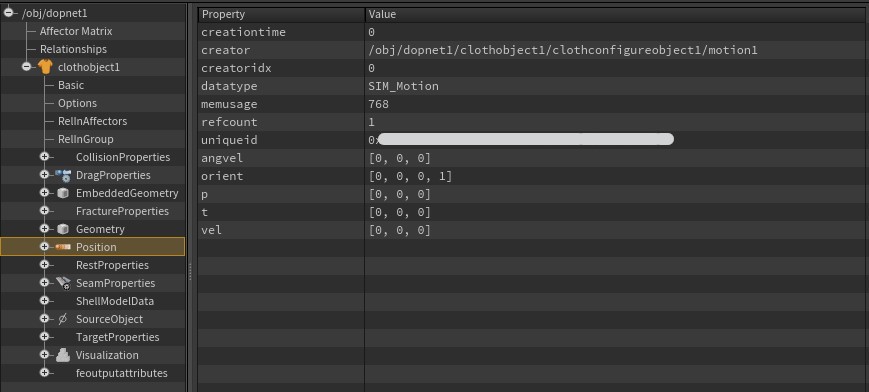
When you view a  DOP Network in the geometry spreadsheet, the view displays a tree representation of all the objects in the DOP simulation (see the image below). You can select objects and data in the tree view to display more information in a subpane.
When you view a  LOP Network in the geometry spreadsheet, the pane displays a split view that contains a scene graph tree and a scene graph details subpane.
Tips 
-
click a cell and click Inspect or ⌃ Ctrl +
 a cell to view the cell’s contents in a floating window. This is useful for dictionary attributes.
 -
Hold ⇧ Shift and scroll to horizontally scroll across the spreadsheet.
-
Hold
and drag to pan around the spreadsheet. -
Click a column header to sort the information by that column in ascending order. Click on the column header again to sort the information in descending order.
-
Sorting is not redone if the geometry changes, so if you move frame to frame you have to re-sort by clicking another column. Turn on Sort on Update in the
 Spreadsheet settings to automatically sort again if the data changes.
 -
Large entries (100 million for example) make sorting computationally expensive, though reverse sorting is fast. Turn on Async Sort in the
Spreadsheet settings to run the sorting in the background, not locking the UI.
Toolbar 
Node
The name of the selected geometry in the network editor.
Show/Hide Packed Tree
Shows the packed geometry tree. See Packed primitive tree for more information.
Points/Vertices/Primitives/Detail Attributes
Choose whether to view and edit point  , vertices
  , primitive
  , or detail
  attributes.
Group Filter
Filter the selected geometry that appears in the table. This is essentially a row filter. The table displays only the corresponding points, primitives, and vertices of this group.
Click the  button to turn filtering on and off. Click the
  button to invert the filter results. For example, this would turn a
 my_group into a !my_group.
Tip
-
Use a group syntax (for example,
@‹attribute›=‹val›,‹val›,...) in this filter to find geometry with exact values. -
click a cell and choose an option from the Group Filter… to populate this parameter.
Attribute Filter
Filter the attributes that appear in the table. This is essentially a column filter. This parameter uses multi-match syntax to search in multiple fields.
Click the button to turn filtering on and off. Click the button to invert the filter results. For example, this would turn a my_attribute into a !my_attribute.
Tip
To populate this parameter, do one of the following:
-
click an attribute header and click Add to Attribute Filter
-
Alt +
 an attribute header
Intrinsics
When Primitives or Detail are on, this shows or hides primitive intrinsics.
Click Show/Hide All Intrinsics to show or hide all of the primitives' intrinsic properties. You can also show or hide specific intrinsic properties.
Replace/Add/Toggle/Remove/Intersect
Transfers the selected geometry’s spreadsheet information to the components selected in the viewer. click this parameter icon and select an option to determine how the geometry’s spreadsheet information updates the selected components.
Note
When you select components in the viewer, the geometry spreadsheet highlights the associated row headers.
Add
Adds the selected spreadsheet information to the components selected in the viewer.
Toggle
Toggles whether components from the selected spreadsheet information are selected in the viewer.
Remove
Removes the selected spreadsheet information from the components selected in the viewer.
Replace (default)
Replaces the components selected in the viewer with the selected spreadsheet information.
Intersect
Sets the components selected in the viewer to be the intersection of the current component selection and selected spreadsheet information, so only the components selected in both are selected.
Auto
Exports changes to the selected spreadsheet information automatically.
Spreadsheet settings
Select what details appear in the table.
Filter Selected
Filters geometry that’s selected in the viewer.
Tip
This does an intersection with the current Group Filter. For example, if you have a Group Filter expression of @P.y>0 and select all the points on the right side in the viewport (@P.x>0), then the spreadsheet displays the upper-right elements.
Full Precision
Displays all the digits of the floating point numbers.
Floating point numbers are binary, so rounded numbers (0.1 for example) aren’t exactly captured. These floating point numbers are often rounded to simplify the pane’s display, but turning on Full Precision displays the exact number. This ensures that two numbers with the same string have the same binary representation.
Decomposed Matrices
Divides matrix attributes, which are 9 (3×3) or 16 (4×4) float attributes, into rotation (in degrees), scale, and translate (for 4×4 matrices) vectors.
Typed Dictionaries
Displays the types of dictionary elements. This increases the dictionaries' verbosity.
Show Group Attributes
Shows the Group column and attributes.
Sort on Update
Automatically re-sorts the sorted column when data changes.
Async Sort
Runs the column sort in a background thread.
Note
This setting is useful when you're working with large amounts of data and don’t want to wait for the UI to unfreeze. When you're working with small data, this setting can decrease performance and cause the UI to reset its sort values more than expected.
Flatten Groups
Displays one column with a comma-separated list of all groups that the element is a part of. When off, the spreadsheet displays one column for each group that shows either on or off.
Tip
click a group attribute header and click Flatten/Expand Group Style to turn this feature on or off.
Flatten Capture Attribs
Displays one boneCapture column with a dictionary style value that shows name : weight relationships. When off, the spreadsheet displays a column for each name and weight (for example, boneCaptureName[0..n] and boneCaptureWeight[0..n]).
Tip
click a capture attribute header and click Flatten/Expand Capture Style to turn this feature on or off.
Flatten Tuple Attribs
Displays one P column with all three tuple values. When off, the spreadsheet displays a column for each component of the tuple (for example, P[x], P[y], P[z]).
Tip
click a tuple attribute header and click Flatten/Expand Tuple Style to turn this feature on or off.
Show Type Icons
Shows the type icon in the column header.
Colors
Sets a color for the columns.
Tree Settings
Controls the settings for the Packed primitive tree.
Apply Transforms to Unpacked Prims
Applies the intrinsic:packedfulltransform to the values in the spreadsheet.
Tip
This option is useful when you want to see the actual result of an RBD simulation.
All Packed Geometry
Shows all packed geometry.
Packed Folders
Looks at the intrinsic:treatasfolder attribute to determine whether to display the packed primitive’s children. Mainly used for APEX animation scenes.
Primitive Path Attribute
Builds the tree based on the path attribute on the primitives. This is typically the mode you want when using the  SOP Modify LOP workflow for going from LOPs to SOPs.
Transform Order
Determines how to order the vectors of the matrix attributes divided by Decomposed Matrices.
Map Offset
Shows the location of the element in memory. This is often required only when debugging C++ nodes.
For example, turn this on if the point number and point offset don’t match.
Packed primitive tree 
Geometry called packed primitives can contain other geometries. Packed primitives have many uses, such as in instancing, RBD simulations, APEX animation scenes, and USD to SOP conversions.
Turn on  Show/Hide Packed Tree to browse the hierarchy of packed primitives on the node. You can select a packed primitive to inspect the data contained inside.
The name of the packed primitive is based first on the primitive’s name attribute, then the point’s name attribute, and lastly on the primitive’s path attribute. If no name attribute is found, the primitive name reverts to a generic packed primitive indexed name.


