| On this page |

The motion mixer pane provides a timeline-based view of the animation clips and motion effects of multiple characters. Animation clips are grouped into tracks, and additional effects can be applied to tracks to change the look and behavior of the final animation.
The motion mixer pane is populated with tracks and clips if you have a  Motion Mixer SOP selected in the network editor. If you have another SOP selected, the motion mixer pane will be empty.
To open the motion mixer pane, click the  New Tab icon at the top of a pane and select New Pane Tab Type ▸ Animation ▸ Motion Mixer.
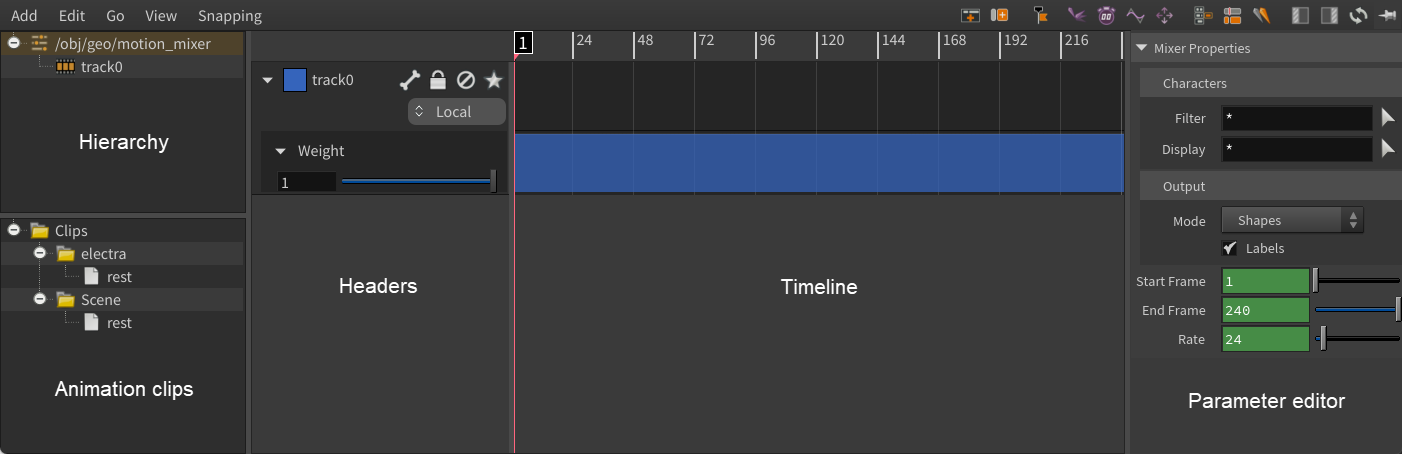
See the motion mixer page for information on how to use the motion mixer to combine and edit animation clips.
Tracks, clips, and weights 
A track is a way to group multiple animation clips for a character, and is represented as a row on the timeline. A track can contain multiple animation clips.
Each track has an associated weight that is represented as a row below the track. The weight determines the extent to which the clips in the track contribute to the overall animation.
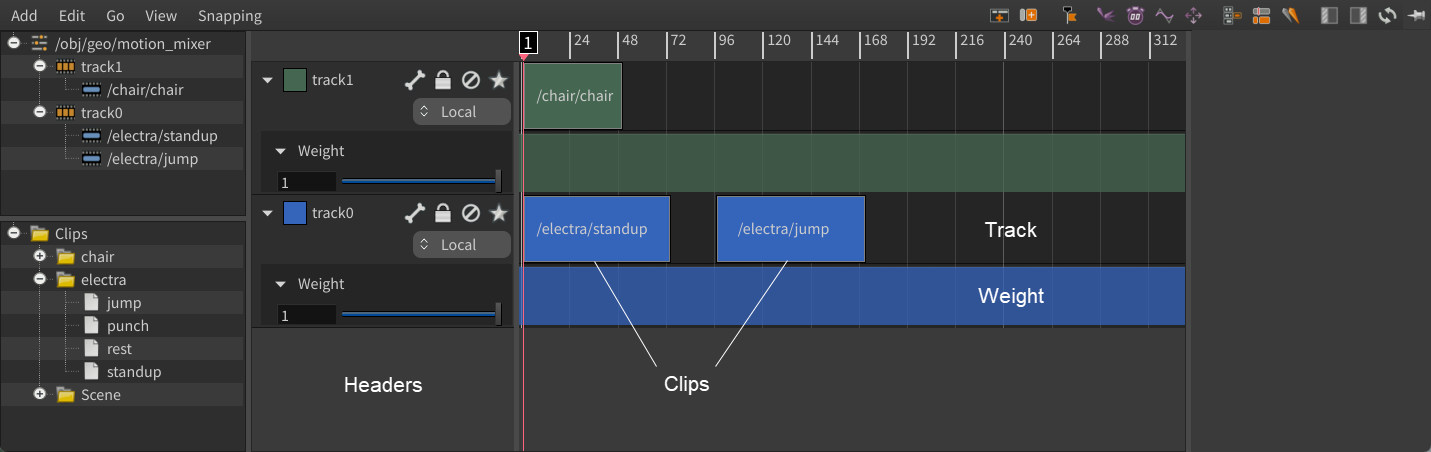
The headers in the motion mixer pane provide settings for configuring the tracks and weights. You can also  click the track header, which opens up a menu with some of the functionality provided by the track header icons.
Note
If you can’t see the weight row, toggle  at the top of the headers section.
Navigating in the timeline 
| To... | Do this |
|---|---|
|
Pan |
|
|
Zoom |
⌃ Ctrl + |
|
Scrub along the timeline |
Drag the playhead. |
|
Frame the selected clip |
Press F. |
|
Display the entire timeline |
Press H. |
|
Move clips |
Drag the clip. |
|
Duplicate clips |
Alt drag the clip. |
|
Set a keyframe on a track weight or effect |
Hold Alt, and click the curve in the timeline or the textbox in the weight/effect header. or
|
|
Move a track weight’s keyframe along the horizontal or vertical axis |
Select/drag a keyframe, and while dragging:
|
|
Resize the different motion mixer pane areas |
To adjust the height of the track/weight area, drag between the track/weight headers. To adjust the width of the headers, drag the separator between the headers and the timeline. You can fully collapse the headers with this action. |


Toolbar 
 Add Track
Adds a track above the selected track.
 Add Marker
Adds a vertical dotted line to the timeline that allows you to mark a certain position in the animation. Double-click the marker header to open a window where you can rename, add comments, and change the color and position of the marker. You can also snap the edge of clips to markers if you turn on Snap ▸ Markers.
 Bake Tracks
Opens a window that provides options for exporting the animation.
 Split at Current Time
Splits the selected clip at the current frame.
 Match Joint
Opens a window that allows you to select joints to match between clip transitions.
 Refresh
Refreshes the motion mixer pane. You can use this to refresh the pane if the pane is  pinned and you select a different Motion Mixer SOP.
 Pin Motion Mixer
Pins the current motion mixer pane so that it doesn’t follow the node selection in the network editor.
Track header 
Show/Hide FX Rows
Toggles display of all the effects rows.
 Select Track Joints
Applies the track to a specific character or character’s joints.
 Lock
Lock
Locks the track so you can’t update the clips on the track.
 Mute
Mute
Mutes the track so that the track doesn’t contribute to the final animation.
 Solo
Solo
Solos the track. Only tracks that are soloed contribute to the final animation.
How-to 
| To... | Do this |
|---|---|
|
Resize multiple clip boundaries |
|
| See also |


