| On this page |
Viewport 
-
Houdini 22.0 removes the OpenGL renderer.
-
The Vulkan viewport adds GPU-accelerated surface subdivision. This moves viewport subdivision from CPU to GPU, which improves performance and smooths edges and primitives. Use ⇧ Shift + = and ⇧ Shift + - to toggle subdivision on and off.
-
For subdivision surfaces, turn the
 Hulls parameter on and off (in the Display toolbar or Display Options window) to switch between the subdivided surface and the original unsubdivided control cage.
 -
The Vulkan viewport supports volumetric fog.
-
OpenCL-Vulkan interoperability boosts performance.
-
New Saturation parameter in the Physical Sky’s Lighting Properties window, which sets the amount of color intensity.
-
Performance improvements for Gaussian Splats viewport rendering. Gaussian Splats now also have initial support for casting and receiving shadows in the viewport. Support was also added for USD GSplat schema.
-
Ellipse and hard barndoor edge support for viewport area lights.
-
Enhancements to heightfield visualization.
-
Interactive XYZ gnomon. In the lower left of the viewport, click the gnomon axis to jump to the view facing that axis and re-click that axis to flip to the opposite side (left/right, top/bottom, and front/back). This is the same as using Set View in the viewport options menu.
-
More robust MoltenVK support on macOS.
-
New 2D and 3D Drawables for COPs. See HOM scripting for information about the new drawable scripts.
Cameras 
The following are improvements for the viewport cameras:
-
Lock SOP, COP, and APEX cameras to look through them, and edit SOP and COP cameras.
-
Drag SOP cameras, COP cameras, and COP nodes into the Scene Viewer to look through them.
-
Changes to the camera menu:
-
Save View was removed.
-
Pin Current Camera parameter pins a camera so it stays in the camera menu regardless of the viewer’s current network.
-
Undo View/Redo View parameter switches between the latest and previous views.
-
Tie View To Camera/Light is renamed to Link Camera/Light to View.
-
Lock Camera/Light Tumbling parameter prevents tumbling entirely, so that you can’t accidentally lose your camera view.
-
-
The Lock camera/light to view button is now the Link or lock camera/light
 menu that’s tied to the Link Camera/Light to View and Lock Camera/Light Tumbling camera menu options.
  represents Lock Camera/Light Tumbling and
  represents Link Camera/Light to View. Lock Camera/Light Tumbling automatically turns off tumbling, but you can turn Allow 2D Pan & Zoom on.
 -
Python scripts to create SOP, COP, and APEX cameras and edit SOP and COP cameras.
-
New
 Camera,
  Camera from Points, and
  Camera To Points SOPs to use in your scene’s camera setup.
User interface 
-
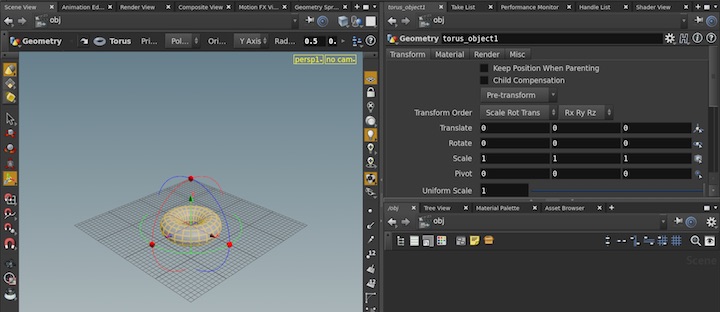
Houdini 22.0 introduces a new UI skin, which you can customize in the Theme Editor window.
Note
As of Houdini 22.0, the old UI is deprecated and will not appear in future releases.
-
Improvements to the Context Options Editor pane.
-
Improvements to the Color Editor, including:
-
Color palette recipes
-
OKHSL colorspace support
-
-
Redesign of the Preferences window’s organization and settings.
-
The
 Recipe Builder subnetwork adds the Save Parameter Filter parameter that captures the settings used for the parameter filter and search bar for each node.
 -
Some parameters have actions that you can perform on their interfaces, but these actions don’t change the value of the parameter. The Send UI Changes to Callback parameter (see Common settings) under the callback field of certain parameters lets you configure the Callback Script parameter to trigger when these actions occur. See UI Callbacks for more information.
-
When you create or edit a shelf or shelf tool, set a Short Label that Houdini uses in the shelf instead of the full label. This lets you use a shorter version of a shelf or tool’s name in the shelf where space is limited. The equivalent HOM methods are hou.Shelf.shortLabel(), hou.Shelf.setShortLabel(), hou.Tool.shortLabel(), and hou.Tool.setShortLabel().
Note
The tab menu still displays the full label even when you set a Short Label.
-
The Geometry and Parameter spreadsheets add the following actions:
-
Hold ⇧ Shift and scroll to horizontally scroll across the spreadsheet.
-
Hold
 and drag to pan around the spreadsheet.
-
-
Improvements to the Geometry spreadsheet’s organization and settings, such as merging and automatically re-sorting columns.
-
Ramp parameters have the following improvements:
-
The
 /
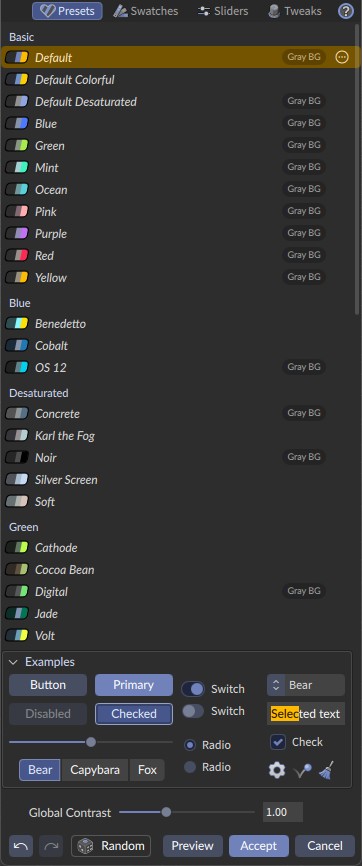
/ Presets button displays the preset configurations in a list gallery, with visual representations. Click the
  Open Gallery button to open the new Ramp Presets window gallery.
 -
The
 Ramp Generator lets you draw lines in the screen to generate an RGB color ramp.
 -
The
menu was reorganized and now lets you Set Interpolation on Selected Points and (for floating point ramps) turn on Grayscale View and Prevent Points from Reordering.
-
-
Set up panes to follow the parent context network by turning on Follow Parent Context. To turn this feature on,
the  button and choose Enable or turn on the
  button. When off, you follow the current node context. See Tab linking for more information.
 -
Cross-platform color picker that operates on the entire screen.
-
When you edit a parameter, you can change a number using number rolling. Press ↑ and ↓ to increase and decrease the value to the right of your cursor. See Change a value using number rolling for more information.
-
Per-instance/dynamic parameter slider ranges.
-
Sprite Drawable framework for use in viewport display and integration. See the following for more information:
-
hou.drawableGeometryType.Sprite enum sprite drawable type that works with point geometries and lets you draw interactive images aligned with the view in world space or screen space.
-
Sprite parameters in the
paramsdictionary in hou.GeometryDrawable.__init__().
-
-
Improvements to Python states and handles. COP Python handles have the following updates:
-
New multi-space support for tracking, handling, and converting COP parameters across multiple coordinate spaces (Buffer, Local, Image, Pixel, and Texture).
-
New support in
drawable2D.Dragger2D(see Utilities) for operating in 3D space using a layer transform. -
New support for handling pivot operations across multiple coordinate spaces.
-
Improved undo support.
-
Improved fixed-size handle support.
-
-
The Optimize tab in the Display Options window adds the GSplats Alpha Culling parameter, which lets you cull Gaussian splats whose alpha is below a specific threshold.
-
Improvements to the shape of COP ports to show their data type.
-
Consistent cross-display UI scaling on macOS.
-
Press F11 to display the Houdini window in fullscreen.
-
Help tooltips now display more information.