| On this page |
You can turn any primitive into a light source. This makes it possible to create believable renderings of neon tubes, glowing objects, filaments in a light bulb, glowing fog, or fancy lamps. The possibilities are endless.
You can use the  Geometry Light LOP to conveniently convert meshes, points, curves or volumes into light sources. When you create the node, you’ll come across the abbreviation
 API. The good news is that you don’t have to care about the technical aspects, but if you're interested, just read the note below.
Note
A schema in general is an extension to the basic USD data model for defining new types of primitives. An API schema provides a programming interface to manipulate the properties of the primitive.
The API Schema tells Solaris/USD which type of light it has to expect and there are three variants.
-
LightAPI. This schema is the most versatile option and turns any geometry into a light source, for example meshes, points, and curves.
-
MeshLightAPI creates the same results as the LightAPI, but is strictly limited to meshes.
-
VolumeLightAPI is, similar to the MeshLightAPI, restricted to volumes.
Once you've chosen a schema/type, you can start to adjust the light’s properties. The parameters of the three tabs are the same as with “traditional” light sources. You can define strength and color of the light source, customize the shadow color, or extract your lights through LPEs for compositing. If you're already familiar with lights in Solaris, you’ll immediately recognize how to adjust a geometry light.
If you're not familiar with lighting in Solaris, we recommend reading the geometry light node’s help card to get an idea of the parameters' function.
Conversion 
The fundamental setup requires only two nodes:
-
a node that carries the geometry
-
the downstream Geometry Light LOP
When you convert a primitive into a light source, make sure to use the appropriate primitive type. To understand this rule take a look at the Scene Graph Tree below. There you can find a Primitive Type column. For example, the actual geometry primitive (“Gprim”) is grouped under the houdini_curve branch and its type is BasicCurves. If you choose the component, nothing will happen and your rendering remains dark. Note that the Geometry Light LOP doesn’t do any plausibility checks whether your selection creates a working light or not.
Other examples for primitive types are Points, Mesh and Volume. The screenshot also shows that the available API types have different icons.
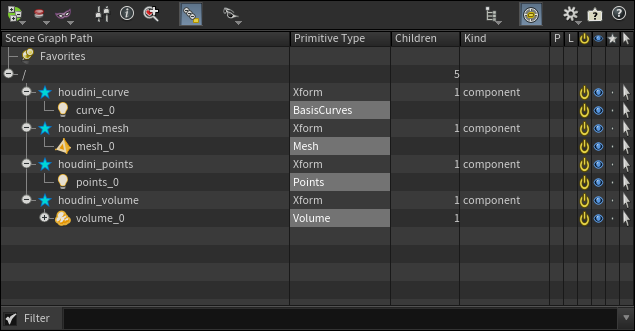
To connect primitive(s) and light node, go to the node’s Primitives parameter, and enter the Scene Graph Tree path(s). For the curve example above, the path would be /houdini_curve/curve_0. Alternatively, you can also drag a primitive from the tree to the parameter.
Width and scale 
With curves and points you can customize width and pscale attributes to get strokes and light dots of different size. If you load the geometry via a  SOP Import LOP or a
  SOP Create LOP, you can adjust a fixed scale that is valid for all elements:
-
On the import/create node, expand the Geometry Handling section and enter a value for Set Missing Widths.
Alternatively, you can also create appropriate attributes directly on the SOP geometry. A convenient method is to place an  Attribute Randomize SOP downstream of the geometry node:
-
For Attribute Name enter
widthorpscale. Both names are valid and in Solaris,pscalewill be converted into awidthprimvar automatically. -
On the Distribution tab, set Dimensions to
1becausewidthis a scalar. -
Define the Min Value and Max Value parameters. We recommend to start with rather small values like
0.01and0.1.
The variable width creates the impression of a hand drawn object:

Volumes 
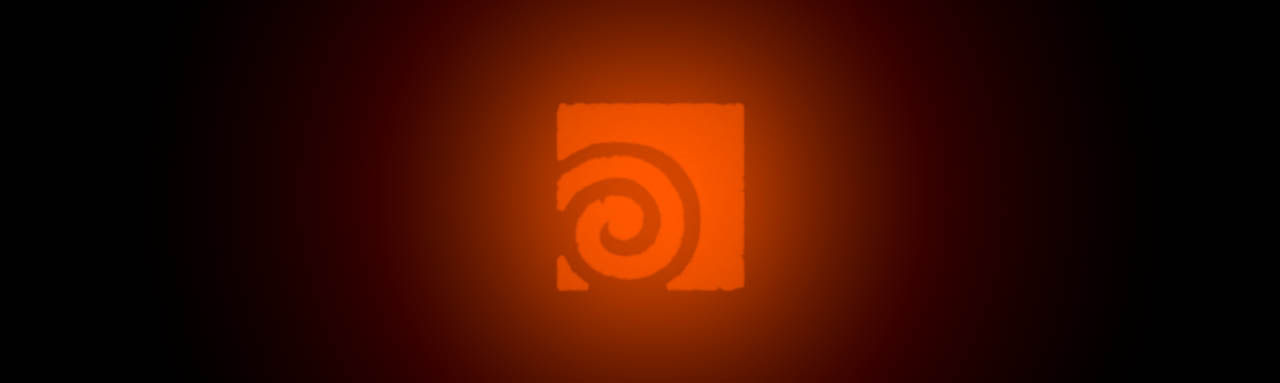
For volumes, the mode of operation is the same as for points or meshes, and you need the Gprim. There’s a VolumeLightAPI schema available for this type. You can use Houdini’s own volume SOPs or VDBs. The Geometry Light LOP supports density-based volumes, but also volumes made from distance fields.
Emissive materials 
The object you want to turn into a light source might already carry an emissive material. The question is how the Geometry Light SOP handles this material?
Note
The settings of the Material Glow Tints Light mode only affect illumination, not the actual material! Geometry lights, seen through reflections or refraction, are the result of direct lighting. If you change mesh light parameters like Intensity or Exposure, the reflected/refracted look won’t match the visible light source seen by the camera.
If you don’t want this behavior, we recommend changing the Diffuse Multiplier parameter instead of adjusting the light’s strength or the material’s emission.
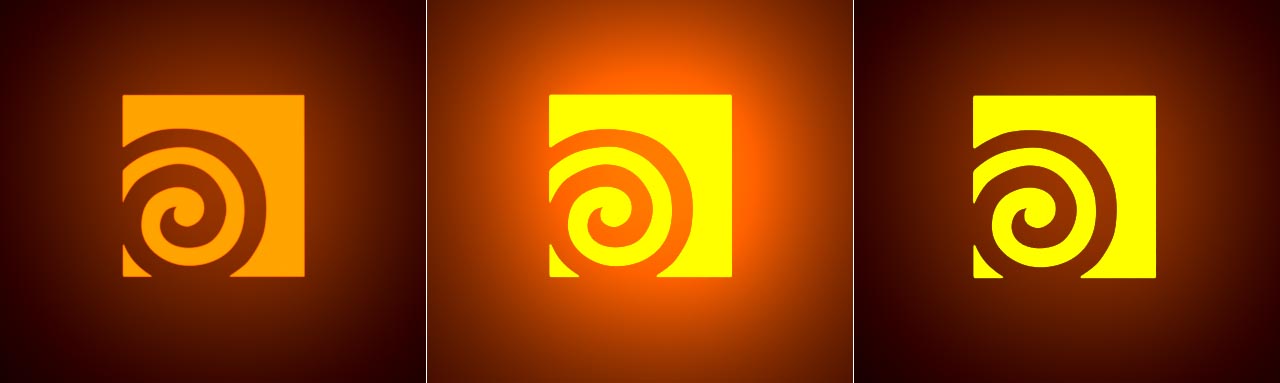
In this example, the Houdini logo has a strong emissive material with a yellow color. The Geometry Light LOP, however, applies the standard orange color. The light node’s Standard tab provides a Material Sync Mode with three options. Here you can choose how the material should contribute to the final light situation.
-
The default No Material Response mode ignores the material and will only take the geometry light’s Intensity and Color into account. The result is what you would expect without an emissive material.
-
With Material Glow Tints Light, logo and illuminated area are a mixture of the material’s yellow and the geometry light’s orange color (also see note above).
-
With Independent, the logo has the emissive material’s yellow color, while the illuminated area has the light’s orange color.
LPEs 
Technically, geometry lights are light sources even if they have an emission shader applied. Therefore, geometry lights will be considered by LPEs with a terminating L event. You can read more about this topic on the Light Path Expressions page.
Instancing 
Instancing is a popular method for creating large numbers of objects with minimal resource consumption. This method is also available for geometry lights. You need one or more objects that will serve as prototypes for the instances. A  Copy to Points LOP will then copy the prototypes on scatter points. The points can, for example, live inside the Copy to Points LOP and specify, where the light sources will appear. The points can carry attributes like scale and orientation, but also colors.

The color attribute can live on the scatter points or directly on the points of the prototype geometry. You need an emissive material that reads out the color values and feeds them into the shader’s emission color, for example with a  MtlX Geometry Color VOP.
This image shows scattered lights with color attributes on the prototype geometry.

Tip
You can read more about instancing light sources in general on Light instancing page.
Creating the lights 
Now you can turn the instances into light sources. The node hierarchy is: Copy to Points LOP → Material Library LOP → Geometry Light LOP
On the Scene Graph Tree, open the branch with the prototypes and drag the mesh to the Light node’s Primitives parameters.

The Primitives path from the tree in the image is /World/copytopoints1/Prototypes/sopimport1/mesh_0. If you have multiple primitives with indices like mesh_0, mesh_3, mesh_6, you can also use wildcards, for example mesh*.
If you want to use the emissive material with instance colors, go to the light node’s Standard tab. From the Material Sync Mode dropdown menu, choose Material Glow Tints Light or Independent.
