-
How do I install Apprentice licenses?
-
Apprentice will need to be activated every 30 days.
You cannot use the Login function within the License Administrator to manage licenses.-
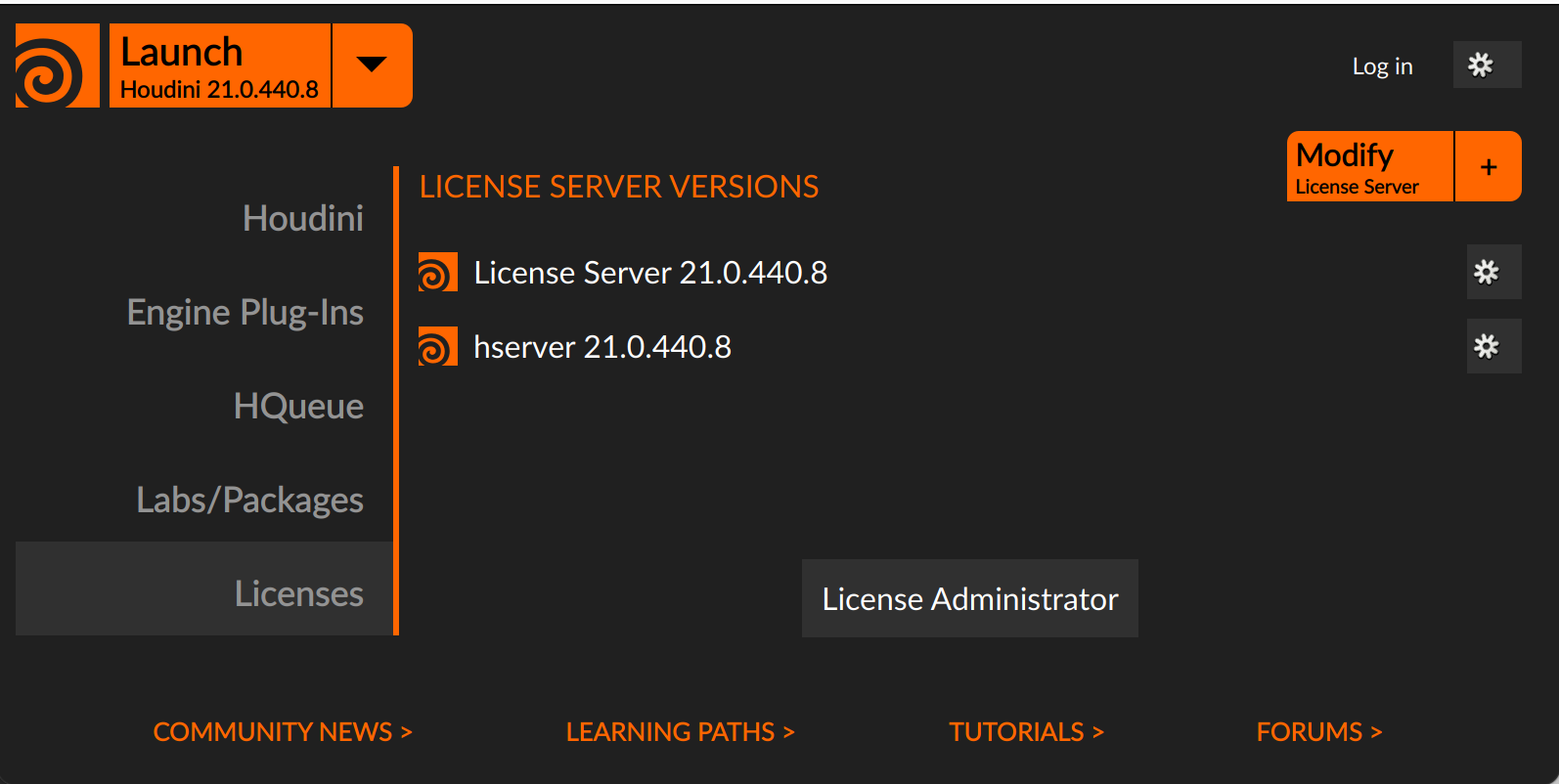
Using the Houdini Launcher, select the License Administrator at the bottom.
-
Navigate to the top right corner drop down menu where it says "No Account" and select "Use Enterprise Servers" (until H21.0.512) or "Switch to on-premise license server (sesinetd)" (H21.0.599 and up).

Do not select Login from this menu option in the License Administrator as this is reserved for Indie/Commercial/Education users. -
Once you have select "Use Enterprise Servers/Switch to Studio Licensing (sesinetd)", remove www.sidefx.com from the top section "Search these license servers", if listed. This can be done by pressing the X button beside the entry.
-
Move your local machine (Local Server) by pressing the + button from "Found Server(s)" section to the top section, and click on the UPDATE button at the bottom.
-
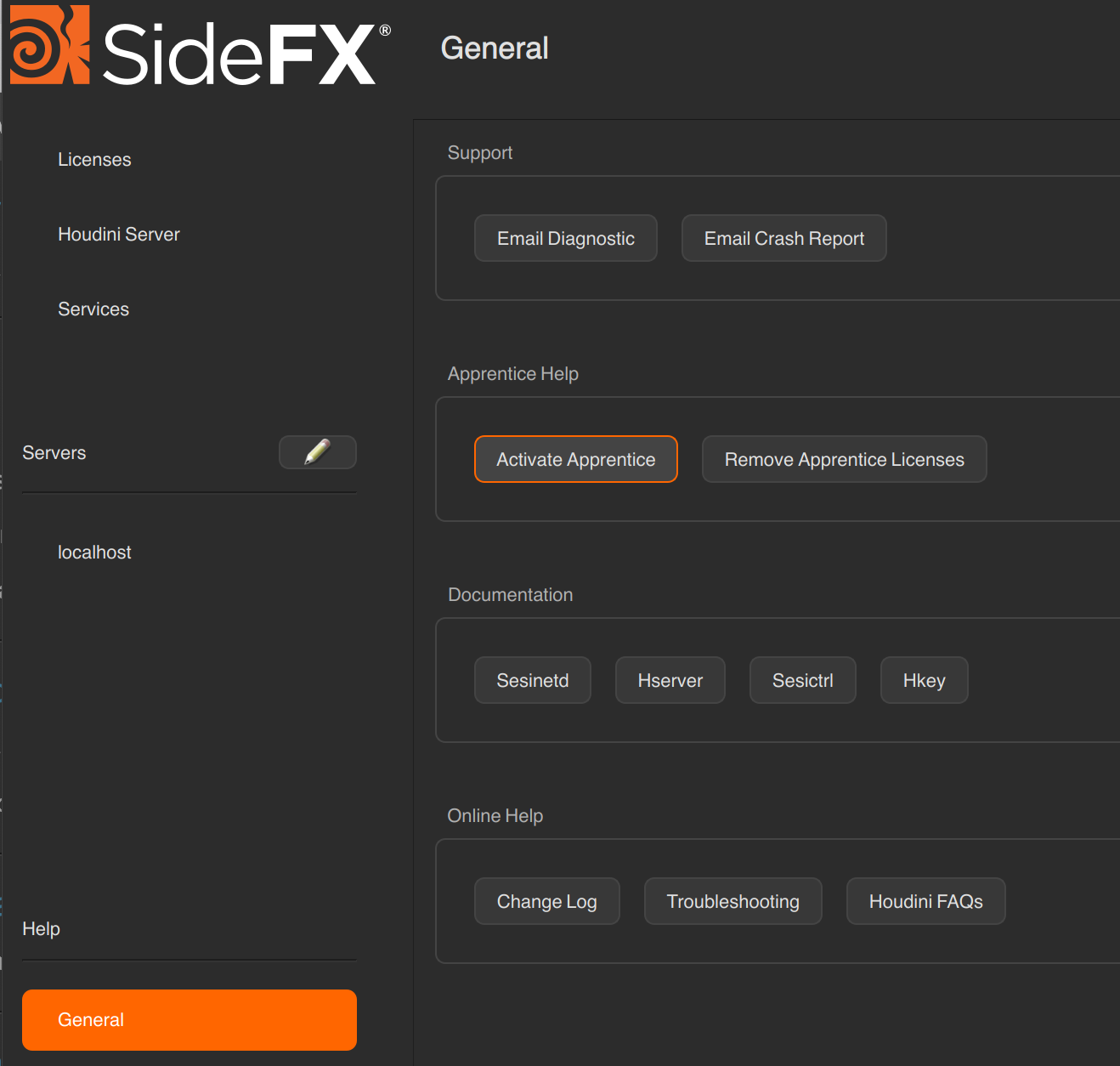
Next, navigate to the General menu on the left side in the License Administrator. Click the Activate Apprentice button.
To remove Apprentice licenses using H21, please refer here
To install Houdini Apprentice using Houdini 20.5 and earlier, please refer to this page.
-