-
How do I setup client machines?
-
The easiest setup will be to have a central license server with clients looking to that server for licenses. Workstation licenses are node locked licenses. They cannot be floated across the network. They are restricted to the machine installed on. Floating licenses are either LAL (Local Access License) or GAL (Global Access License).
Apprentice and Indie users are only issued workstation (node locked) licenses.
Please see our system requirements page to see what hardware and operating systems are supported.
The steps:
-
Download Houdini onto the workstation.
-
Install Houdini onto the workstation.
-
Launch the License Administrator and select File->Change License Server. Enter the license server name.
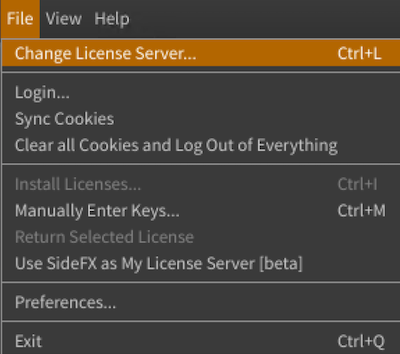
If you have setup a network license server, you don't have to install the licensing tools on the workstation as it will look to the remote server for a license.
There are other ways to instruct the client machine to look to the license server.
If you are looking to install licenses locally on the workstation, refer to License a workstation.
If the client is having issues connecting to the remote license server, please check the server firewall. Ensure that the licenses installed on the server have the correct network IP masks.
-