-
How do I license Houdini Products?
-
A walkthrough guide for licensing Houdini
Account Activation
Once your account has been created, the system will send an activation email for your licensing account. Your email address will also receive other notifications from the system such as new license entitlements to be installed, upgrades or extensions to existing licenses. Please ensure that you have licensemanager@sidefx.com whitelisted in your spam settings.
NOTE:
Apprentice users will not be able to manage their licenses with their SideFX web account through the License Administrator. This is reserved for Indie, Education and Commercial users.
Licensing
These are the methods for storing your Houdini Licenses:
Method 1: Install licenses to your computer and your machine is the license server (to itself).
Method 2: Login to use your licenses. Requires an Internet connection.
Method 3: Install licenses to a machine that will act as the network license server to serve network clients.
NOTE:
Houdini Apprentice users can only use Method 1. If you install your licenses, you will be unable to use login licensing. Please return your licenses to your Houdini license account to use login licensing.
Install licenses to your computer
With this method, you can install the licenses directly to the computer so your machine is both the client and server.
For Apprentice users, please refer to How do I license Houdini Apprentice.
Your machine serves itself the licenses. When you install the licenses locally, the machine name and hardware information are encoded into the license itself so renaming the computer name can invalidate the licenses. The benefit of using this method is that you don't need an Internet connection to run Houdini since the machine serves the licenses to itself.
This option is good for laptops on the move which may not have a persistent Internet connection.
Using the License Administrator (hkey):
- Select File->Log In to log into your SideFX license account using your email address and password.
- Select File->Install Licenses (See note under 4.)
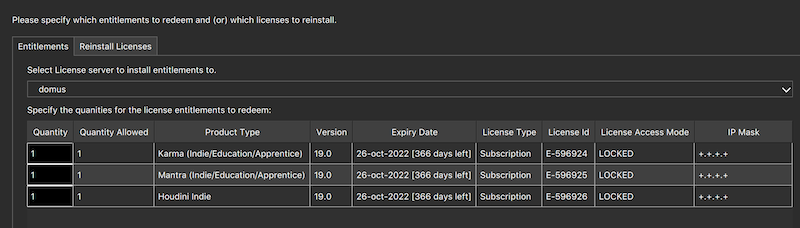
- Press the Select All button and ensure the Quantity box matches the allowed or desired number of licenses.
- Press the Install button.
Note: If the Install Licenses option is greyed out, ensure that you have set your license server to be the local machine and you are not looking to SideFX as the server. In the License Administrator select File>Change License Server and add your machine from the Found Server(s) list to the Search Server(s) list.
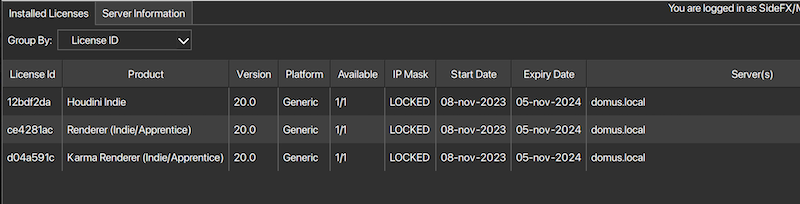
The Server(s) column should list the local computer name if you have installed the licenses locally.
Login Licensing
With this method, you don't install the licenses locally. You set the machine to look to SideFX and launch Houdini.
This option is quite flexible as you can run Houdini on different computers or if your machine is formatted or crashes, you don't need to worry about how to release the original licenses. The complexity of licensing is taken away. However, this option requires an Internet connection. If you have started the Houdini session and Internet connectivity is lost, the license will be checked out for two weeks by the machine unless the Houdini session is closed.
Using the License Administrator (hkey):
- Select File->Log In to log into your SideFX license account using your email address and password.
- Select File->Use SideFX as my license server
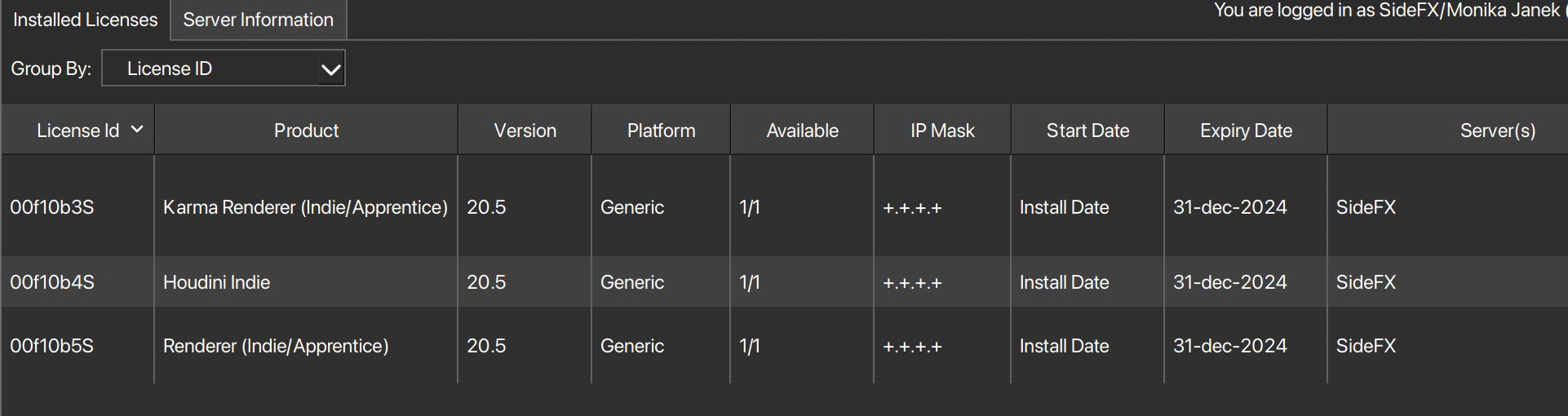
The Server(s) column should list SideFX if you are using SideFX as the license server.
Install floating licenses to a network server.
Follow Method 1 to install the licenses to the machine that will act as the central license server. Only floating licenses (LAL/GAL) can to be served to network clients.
You will not be able to mix LAL and GAL licenses on the same server.For more information, please refer to How do I setup a network license server?
Troubleshooting:
Most licensing issues can be resolved by following the above, if you cannot resolve your licensing issues, please email support@sidefx.com with the license diagnostic from the machine you are trying to license. Please also include your Account number and or/email used for licensing so the support team can easily locate your account information.