From Houdini 21
-
How do I install Apprentice licenses?
-
Apprentice will need to be re-activated every 30 days.
-
Using the Houdini Installer, select the License Administrator at the bottom.

-
Navigate to the top right corner drop down menu.
You can log into your SideFX account but it is not required. You will be prompted to install Apprentice licenses.

You should now be activated with Apprentice licenses.
Another way to license Apprentice
-
If you choose not to log into your SideFX account, navigate to the top right corner drop down menu.
Select "Switch to on-premise license server (sesinetd)"

-
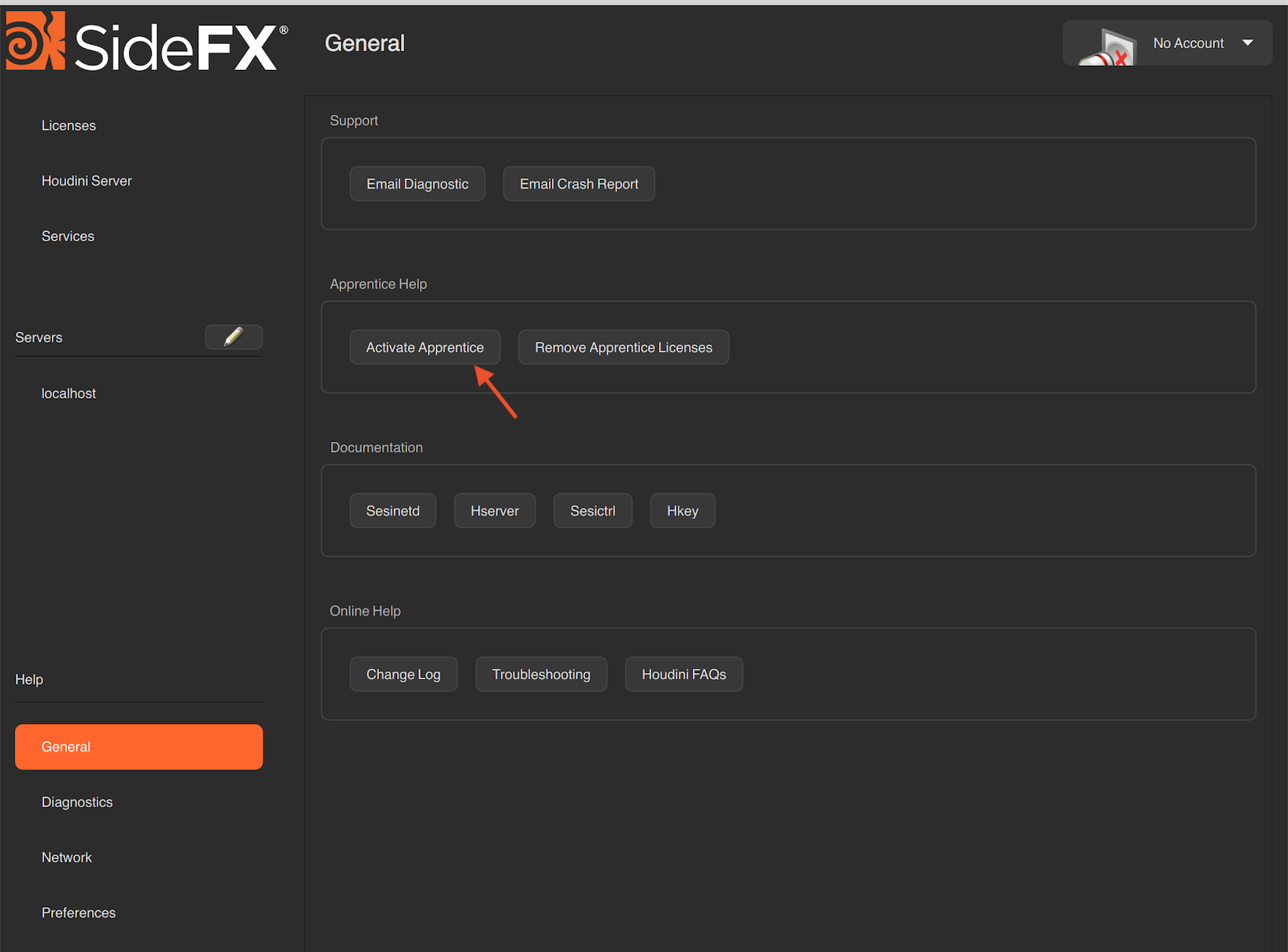
Now navigate to the General menu on the left side of the License Administrator.
Click the Activate Apprentice button.
To remove Apprentice licenses, please refer here
For more information about Apprentice usage please refer to this page
-