| Since | 21.0 |
This component uses the rotation of a joint to drive the position of another joint. The driven joint must be parented to the joint that is driving it. This component can be used to fix the deformation of elbows and knees.
In this example, we use the rotation of the knee to drive a patella joint:
The following network is used to set up the joint rotate corrective component:

-
The inputs are the character’s mesh and skeleton, and a ray geometry:
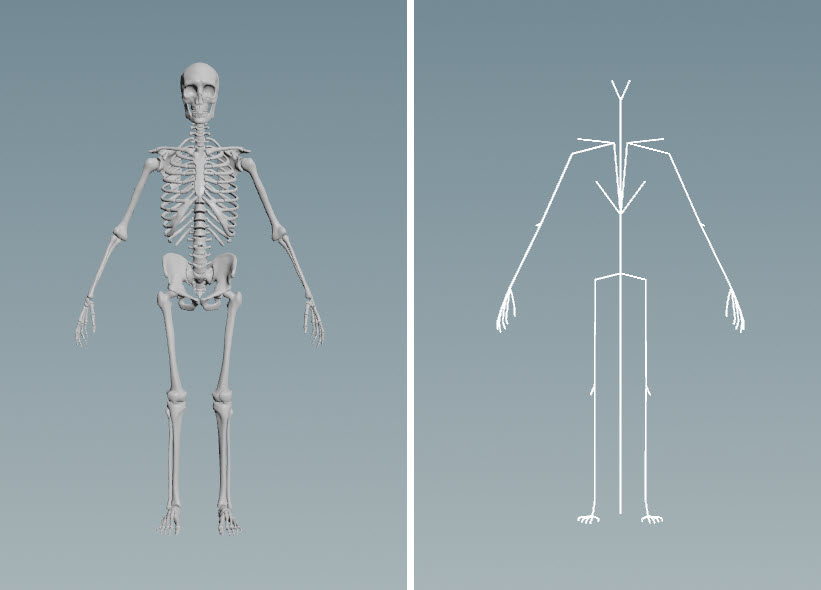
Mesh (left), skeleton (right) The ray geometry is a geometry surface that the driven joint is projected onto (see the steps below for more details):

Ray geometry Use of the ray geometry results in a more accurate rotation behavior for the driven joint:
No ray geometry With ray geometry -
The joint rotate corrective component requires a driven joint on the skeleton, in our example, the patella joint. The patella joint must be parented to the knee:

Joints for the joint rotate corrective component -
Add tags to the patella joints using the
 Attribute Adjust Array SOP (see preparing skeletons for more information on tagging skeleton joints):
Joint rotate corrective tags -
Add the mesh, skeleton, and ray geometry to a character folder structure using a
 Pack Folder SOP. See assembling data for more information on using this node. In our setup, the ray geometry is packed into the character folder structure as two separate meshes. On the Pack Folder SOP, we specify a name for each of the ray geometries,
 L_PatellaCorrective.shpandR_PatellaCorrective.shp. -
See rigging a character for how to use the fk transform and bone deform rig components.
-
The limb rig component sets up the leg controls, including the FK functionality on the knees. On the limb component’s
 menu, click the IK/FK switch to switch the leg controls to FK.
 -
On the joint rotate corrective component, set the following:
-
In the Driven tab, set Segments to the joint rotate corrective tags, in our case,
*Corrective. -
In the Settings tab, set Ray Geometry to the name of the ray geometries in the character folder structure. You can use the string “
{segment}” to specify the value in Segments. See the Ray Geometry parameter for more information. In our example, we set Ray Geometry to{segment}.shp, which sets the ray geometry toL_PatellaCorrective.shpandR_PatellaCorrective.shpin the character folder structure. The ray geometry shapes are parented to the knee. -
In the Settings tab, set the value of Max R. If it is set to (0, 0, 0), the driver won’t rotate the driven.
The following joint rotate corrective controls are created:

Knee controls -
Parameters 
Settings 
Ray Geometry
The ray geometries in the character folder structure. You can use the string “{segment}” to get the segment name from the Segments parameter. For example, if Segments is set to *Corrective, and you set Ray Geometry to {segment}.shp, the ray geometries retrieved are, for example, L_Corrective.shp and R_Corrective.shp.
Use Secondary Axis
When turned on, uses the secondary axis derived from the joints to set the secondary axis of the driven joint’s rotation. (The primary axis is the axis that looks down the joint, and the secondary axis is the rotation/twist axis.)
Switch Secondary Axis
When turned on, switches the secondary axis to be the other non-primary axis. This parameter is available when Use Secondary Axis is turned on.
Secondary Axis
When Use Secondary Axis is turned off, this is the secondary axis to use for the driven joint’s rotation.
Driver Max Angle
The angle that the driver rotates to apply the Max T, Max R, and Max S values. For example, if Driver Max Angle is set to 90, and Max R is set to (0, 0, 60), the driven joint rotates to 60 degrees as the driver rotates to 90 degrees:
Max T
The maximum translation of the driven joint as you rotate the driver.
Max R
The maximum rotation of the driven joint as you rotate the driver.
Max S
The maximum scale of the driven joint as you rotate the driver.
Use Min
When turned on, you can specify the minimum translation, rotation, and scale of the driven joint. For example, if Use Min is turned on, Driver Min Angle is set to -90, and Min R is set to (0, 0, -45), the driven joint rotates to -45 degrees as the driver rotates to -90 degrees:
Driver Min Angle
When Use Min is turned on, this is the angle that the driver rotates to apply the Min T, Min R, and Min S values.
Min T
When Use Min is turned on, this is the minimum translation of the driven joint as you rotate the driver.
Min R
When Use Min is turned on, this is the minimum rotation of the driven joint as you rotate the driver.
Min S
When Use Min is turned on, this is the minimum scale of the driven joint as you rotate the driver.
Driven 
Segments
Segments are tags that separate each joint rotate corrective setup. Tags can be set up on skeleton joints using an Attribute Adjust Array SOP. See preparing skeletons for rigging for more information.
If Segments is empty, the joint rotate corrective logic is run once.
Note
The Segments parameter does not take APEX path patterns, for example, the #<tag> function. Instead, specify the tag names directly in this field.
Tags 
Component
The tags to add to the driven  TransformObject nodes created by this component.
Shape 
The  APEX Configure Controls SOP provides more options for changing the look of the controls.
Promote Control
When turned on, promotes the driven control.
Shape
The shape of the driven controls. It can be set to any of the built-in APEX control shapes.
Color
The color of the driven control shapes. To inherit the shape color from the skeleton, set this value to (0, 0, 0).
Rotate
The rotation of the driven control shapes.
Scale
The scale of the driven control shapes. To inherit the shape scale from the skeleton, set this value to (0, 0, 0).
| See also |
 APEX AutoRig Component