| On this page |
In APEX Script, user-defined functions are represented as subnet nodes in the APEX network view. The contents of the subnet node contains the function logic.
APEX Script code:
# Function definition
def test(a: Int, b: Int):
    c: Int = a + b
    return c

# Function call
x = test(1, 2)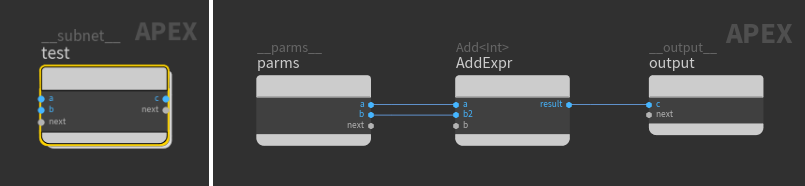
Users can define their own functions in APEX Script similar to Python:
-
Functions are defined using the
defkeyword followed by the function name. -
Information, called arguments, can be passed into a function through a comma-separated list of values within a set of parentheses “
()”. These arguments follow the function name. -
The block of code that is executed when the function is called must be indented.
-
Information can be returned by a function, and these return values are specified using the
returnstatement. A function can return multiple values separated by commas. -
Functions must be defined before they are called.
Function arguments 
Arguments are passed into a function through a comma-separated list of values within a set of parentheses “()”. These arguments follow the function name. The number of arguments in the function call must match the number of arguments in the function definition. It is good practice to annotate the arguments in the function defintion:
# Function definition
def test(a: Int, b: Int):
    c: Int = a + b
    return c

# Function call
x = test(1, 2)
Function with no arguments:
# Function definition
def test():
    a = 1.5
    return a

# Function call; result is x = 1.5
x = test()
You can specify default values for function arguments in the function definition. If the function is called without arguments, the default values are used:
# Function definition
def foo(a: String = 'test', b: Int = Int(Float(1.5))):
    return a, b

# Function call; result is x = 'test', y = 1
x, y = foo()
You can call a function with keyword arguments, which are arguments with the syntax <key>=<value>, where <key> is the name of the argument. When calling a function using all keyword arguments, the order of the arguments does not matter.
Note
If you use both keyword and positional (non-keyword) arguments in a function call, keyword arguments must be placed after positional arguments.
# Function definition
def test(a: Int, b: Int):
    c: Int = a + b
    return c

# Function call with keyword arguments
x = test(b=1, a=2)
Keyword arguments that contain __dot__ are replaced with '.'. This allows APEX Script to handle rigs with geometry names like Base.skel and Base.shp:
# Function takes in Base.skel and returns Base.shp
def test(Base__dot__skel: Geometry):
    Base__dot__shp = Geometry()
    return Base__dot__shp

# Graph input is Base.skel
geo = BindInput(Base__dot__skel=Geometry())
x: Geometry = test(geo)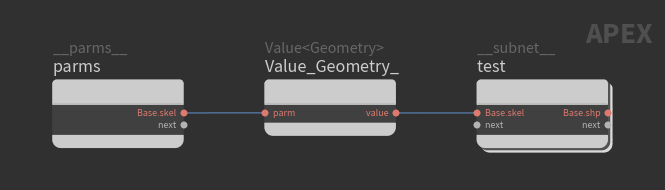
Function return values 
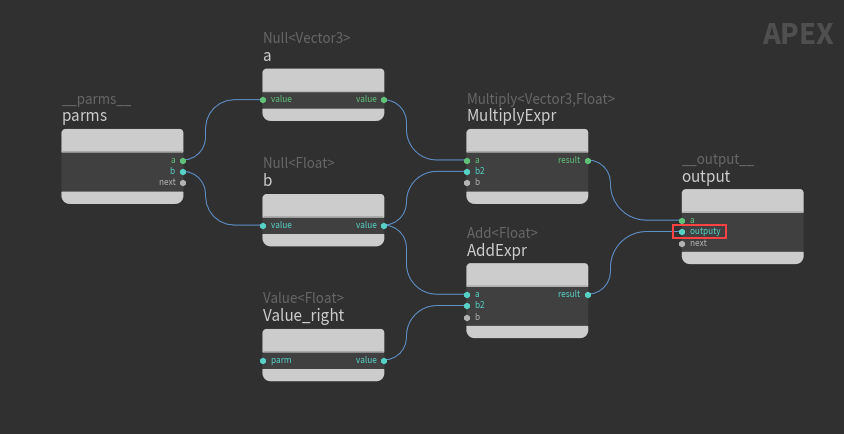
A function can return multiple values, and you can specify the return types following the “->” after the argument list. Function return types can be specified with parentheses “()” or square brackets “[]”:
def test(a: Vector3, b: Float) -> tuple[Vector3, Float]:
    a = a * b
    b = b + 1.0
    return a, b

x, y = test(a=(3.0, 3.0, 3.0), b=5.5)
In the function return type, you can specify a name for the output port of a subgraph or subnet. Use square brackets to do this. In the example below, the subnet output port b is renamed to outputy:
def test(a: Vector3, b: Float) -> tuple[Vector3, Float[outputy]]:
    a = a * b
    b = b + 1.0
    return a, b

x, y = test(a=(3.0, 3.0, 3.0), b=5.5)

BindOutput(x, y)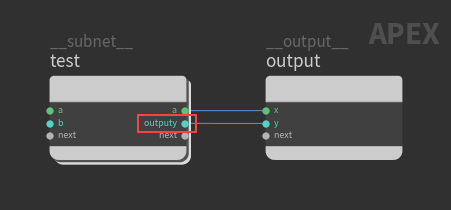
If you want to ignore certain return values, assign those values to an underscore (_):
def test(a: Int):
    a1: Int = a + 1
    a2: Int = a + 2
    a3: Int = a + 3
    a4: Int = a + 4
    return a1, a2, a3, a4

_, _, x, _ = test(1)
More function examples 
Expressions in function calls:
def foo(a: String, b: Int):
    return a, b

m = 3
n = 4
p = 'test'

# Result: x = 'test3', y = 7
x, y = foo(p+String(m), m+n)
Functions can be nested inside other functions:
def foo(a: Int):
    return a+2

# Call foo within this function
def bar(a: Int) -> Int:
    return foo(a)+4

# Result: x1 = 3, x2 = 7
x1 = foo(1)
x2 = bar(1)
Functions can be daisy-chained:
geo.computeTransform().transform(xform=Matrix4())
Saving functions as subgraphs 
Functions can be saved to disk as subgraphs using the  APEX Script SOP. These subgraphs can then be used in APEX Script code as global functions. Any subgraphs you have, including ones built by other users, could be used as functions in APEX Script.
To save a function as a subgraph:
-
In an APEX Script SOP, turn on the Subgraphs parameter.
-
In the Subgraphs section, define the function in the Subgraph snippet parameter and put the
@subgraphdecorator above the function definition.For example:
@subgraph def test(a: Int, b: Int): c: Int = a + b return c -
The subgraph must be saved as a
.bgeofile in@/apexgraph, where@expands to the directories in the HOUDINI_PATH. If you don’t specify the directory, the subgraph will be saved to$HOME/apexgraph. You can set the subgraph location and filename in the Geometry File parameter or the subgraph decorator argument,@subgraph(<file_path>). -
Click the Save Subgraphs button.
In the same APEX Script SOP, or in a new APEX Script SOP, you can now use the saved subgraph as a function when writing APEX Script code.
Decorators 
A decorator performs an operation on another function and is specified with the @ symbol. For example:
@subgraph
@namespace('my_namespace')
@safeguard_inputs(True)
def test(a: Int, b: Int):
    c: Int = a + b
    return c
The available decorators are:
Subgraph 
The @subgraph decorator allows the function that directly follows it to be saved as a subgraph. The subgraph is saved as a packed subgraph - it is stored as a primitive in a packed folder.
The @subgraph decorator takes in an optional argument, <file_path>, and also supports the use of keyword-only arguments:
@subgraph([<file_path>], name=<name>, hidden=[True|False], ...)
Argument |
Type |
Description |
|---|---|---|
name |
String |
The name assigned to the subgraph. This is the |
hidden |
Bool |
If set to True, hides the subgraph from the tab menu in the APEX network view. This value is added to the |
You can also specify custom keyword-only arguments, which are added to the properties attribute of the graph geometry.
Example:
The @subgraph decorator below names the subgraph testnode::3.0. Without the name keyword argument, the subgraph would be named test:
@subgraph('$HOME/houdini21.0/apexgraph/subgraph_test.bgeo',
    name='testnode::3.0',
    hidden=False,
    extrainfo=123)
def test(a: Int, b: Int):
c: Int = a + b
return c
After saving the subgraph, you can use the subgraph in the following ways:
-
Search for the subgraph
testnodein the APEX network view: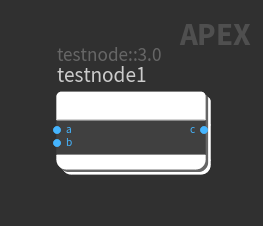
-
Use the subgraph as a function in an APEX Script snippet:
s = testnode(1,2)
To see the properties of the subgraph, you’ll need to unpack the graph:

-
Use the
 File SOP to bring in the subgraph:
-
Set Geometry File to the subgraph
.bgeofile. In our example,$HOME/houdini21.0/apexgraph/subgraph_test.bgeo. -
In the geometry spreadsheet, click
 Primitives on the top toolbar. The subgraph name
testnode::3.0is listed as the name of the packed subgraph.
-
-
The subgraph is in a packed folder, so to see its properties, unpack it using an
 Unpack Folder SOP:
-
Set Extract Pattern to the name of the subgraph,
/testnode::3.0. -
In the geometry spreadsheet, click
 Detail on the top toolbar. The following values are listed in the
propertiesattribute of the subgraph:{ "extrainfo": 123, "hidden": 0 }
-
Namespace 
You can specify a namespace for a function with the @namespace decorator. After saving a function as a subgraph, you can call the function using <namespace>.<function>. The syntax for the @namespace decorator is:
@namespace('<namespace>')
For example, you can define the following subgraph in the APEX Script SOP, Subgraphs section:
@subgraph
@namespace('my_namespace')
def test(a: Int, b: Int):
    c: Int = a + b
    return c
After saving the function as a subgraph, you can call the subgraph function with:
x = my_namespace.test(1,2)
Safeguard inputs 
The @safeguard_inputs decorator helps prevent graph sorting issues by making copies of function input arguments where necessary. The syntax for the @safeguard_inputs decorator is:
@safeguard_inputs(True|False)
When @safeguard_inputs is set to True, APEX Script makes a copy of a function input argument (adds a  Value node to the graph) if:
-
The input argument feeds into an in-place port.
and
-
The name of that input does not match any output names on the function.
If @safeguard_inputs is set to False, APEX Script does not create copies of any function arguments. This could introduce graph sorting issues, so use caution when setting @safeguard_inputs to False.
If @safeguard_inputs is not included before a function, it is set to True by default.